Category: Support

  • WordPress – Posts and Categories

    WordPress – Posts and Categories

    Adding a category

    Review the following link for more info on adding categories: http://codex.wordpress.org/Manage_Categories_SubPanel
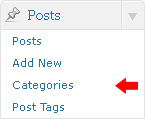
    1. Log in to your WordPress Administration Panel (Dashboard).
    2. Click the Post tab
    3. That done, click Categories for blog posts
    4. Type in the name of your new category
    5. With that done, click the Add New Category button

    Creating a blog post

    1. Log in to your WordPress Administration Panel (Dashboard).
    2. Click the Posts tab
    3. And click the Add New tab
    4. Type in your post content. For more info on adding posts, please review the following link http://codex.wordpress.org/Posts_Add_New_SubPanel
    5. And finally click the Publish button

    Creating a blog post

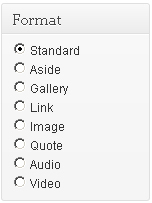
    Review the following link for more info about post formats: http://codex.wordpress.org/Post_Formats
    Creating a slider post (slide)

    Slides are essentially custom post types http://codex.wordpress.org/Post_Types#Custom_Types. which means that they are different from common posts, such as blog posts, portfolio posts etc. That allows us to manage the content of the site really easy.

    The following slider runs on Nivo Slider.

    Please note, your template may use another slider plugin. Please refer to your template documentation for the most accurate information.
    1. Log in to your WordPress Administration Panel (Dashboard).
    2. Click the Slider tab
    3. And now click the Add New tab
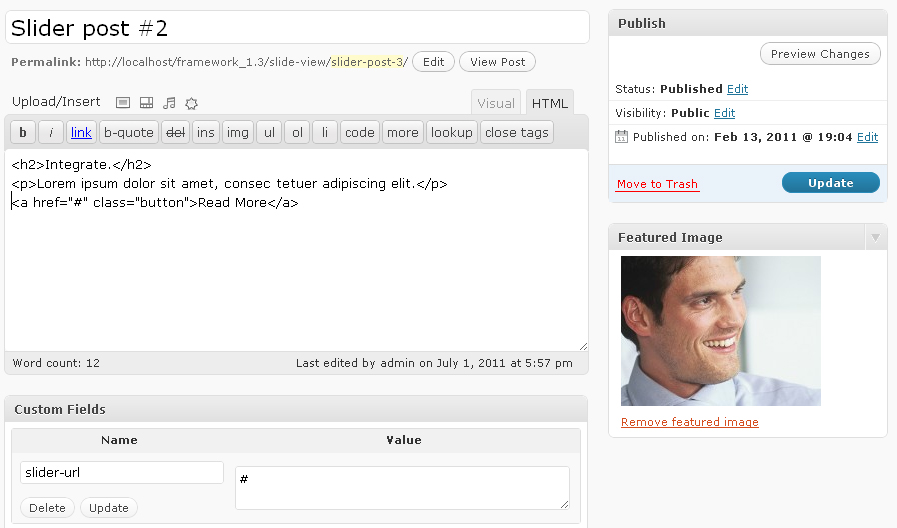
    4. Insert your slider title.
    5. Upload your image with the help of the Featured Image option (click the Set featured image link)
    6. You can use the following custom fields for your slider:
      • slider-url – link for the slider image.
    7. For the slider description please use the post edit option. The slider description can contain the HTML-markup, f.e:
      1
      2
      3
      <h2>Integrate.</h2>
      <p>Lorem ipsum dolor sit amet, consec tetuer adipiscing elit.</p>
      <a href="#" class="button">Read More</a>
    8. And click the Publish button

    Adding a portfolio post
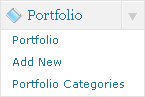
    Portfolio items are essentially custom post types http://codex.wordpress.org/Post_Types#Custom_Types. which means that they are different from common posts, such as blog posts, portfolio posts etc. That allows us to manage the content of the site really easy.
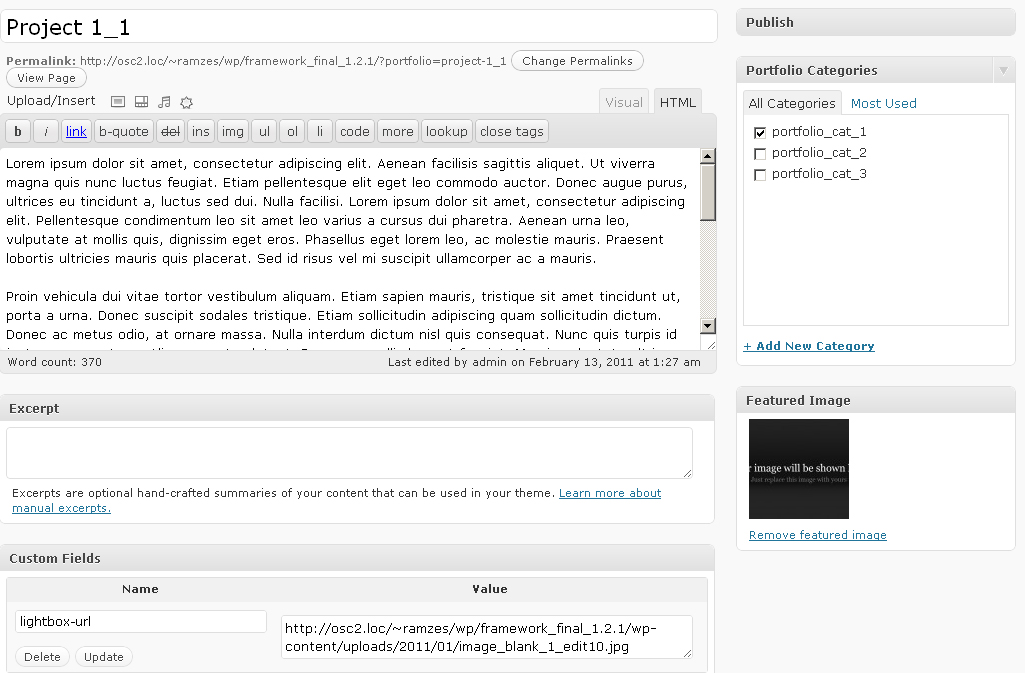
    1. Log in to your WordPress Administration Panel (Dashboard).
    2. Click the Portfolio tab
    3. And now the Add New one
    4. Fill in all the required fields (title, content)
    5. Upload your image with the help of the Featured Image option (click the Set featured image link)
    6. The following options are available for a porfolio post:
      • lightbox-url – path to the large image. Once clicked it’ll pop up with the help of prettyPhoto
    7. And push the Publish button

    Adding a Testimonials post
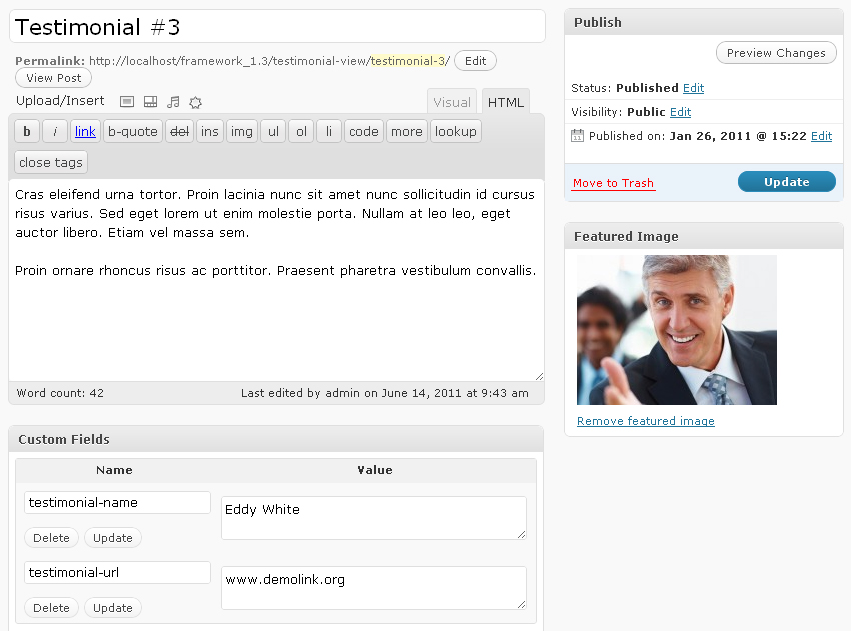
    1. Log in to your WordPress Administration Panel (Dashboard).
    2. Click the Testimonials tab
    3. And click the Add New tab
    4. Fill in all the required fields (title, content)
    5. Upload your image with the help of the Featured Image option (click the Set featured image link)
    6. You can use the folowing custom fields for this sort of posts:
      • testimonial-name – authors’s name
      • testimonial-url – author’s link
    7. Hit the Publish button

    Adding an FAQs post
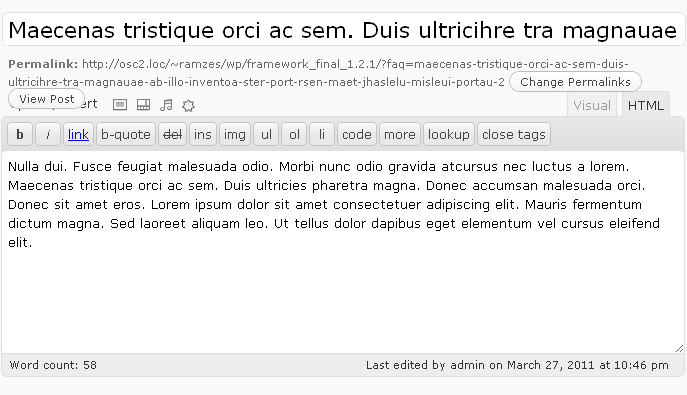
    1. Log in to your WordPress Administration Panel (Dashboard).
    2. Click the FAQs tab
    3. And now the Add New button
    4. Since it is a question/answer type of post, the title of the post is the question and the content is the answer.
    5. Click Publish

    Adding an Our Team post

    1. Log in to your WordPress Administration Panel (Dashboard).
    2. Click the Our Team tab
    3. And now the Add New button
    4. Fill in all the required fields (title, content)
    5. Upload your image with the help of the Featured Image option (click the Set featured image link)
    6. Click Publish

    Adding a Service post

    1. Log in to your WordPress Administration Panel (Dashboard).
    2. Click the Services tab
    3. And now the Add New button
    4. Fill in all the required fields (title, content)
    5. Upload your image with the help of the Featured Image option (click the Set featured image link)
    6. Click Publish

    Please note, these are the most used custom posts types of our templates. Your particular template may include different posts types with different names and appearance. Please refer to your template documentation for the most accurate information.

  • WordPress Page Templates and Sidebars

    WordPress Page Templates and Sidebars

    Please note, these are the most used page templates of our templates. Your particular template may include different page templates with different names. Please refer to your template documentation for the most accurate information.

    Page Templates

    • Default Template (the default page template with a right sidebar position)
    • Full Width (a page template with one column and no sidebar positions)
    • Portfolio 1 column (the page template for 1 column portfolio display)
    • Portfolio 2 columns (the page template for 2 columns portfolio display)
    • Portfolio 3 columns (the page template for 3 columns portfolio display)
    • Portfolio 4 columns (the page template for 4 columns portfolio display)
    • Page Testimonials (the page template for testimonials posts display)
    • Page FAQs (the page template for displaying FAQs)

    Sidebar Position

    Please note, these are the most used sidebar positions of our templates. Your particular template may include different sidebar positions with different names. Please refer to your template documentation for the most accurate information.

    • Header – Located at the top of pages
    • Before Home Page Content – Located at the top of the Home Page content.
    • Home Page Content – Located at the middle of the Home Page content.
    • After Home Page Content – Located at the bottom of the Home Page content.
    • Sidebar – Located on the right hand side or left hand side of pages
    • Footer – Located at the bottom of pages.
  • Ending Support for Older Browsers

    Many people ask why we don’t continue to support older web browsers when it comes to email or website development. The answer is simple. You can’t live in the past forever.

    Our webmail is supported in the following browsers, but even the list below can be challenging when you have multiple tool-bars and plugins installed. These all can effect how your email and websites run within the browser.

    • Windows—Internet Explorer 7+, Firefox 3.6+, Google Chrome
    • Mac OSX—Safari 4+, Firefox 3.6+, Google Chrome

    As newer technologies become available that allow us to develop sites for mobile, or add fancy slide shows without the use of flash there will always be older technologies that just don’t know what to do with the new code. In these cases we make calculated decisions based on whether the time and cost associated with building for multiple platforms and versions of browsers makes sense, or does prompting users to upgrade become a better alternative.

    For Website development we use the latest industry standards for browser support. The Compatibility View feature in Internet Explorer is not supported.

    We make our best effort given our clients budget to support older browsers to a certain degree, such as Internet Explorer 8. Often the best way to deal with issues arising from older browsers is to tell the browser to disable the feature, such as shadow borders and opt for a solid outline. Of course, given enough resources and time we can try to account for every nuance of a browser, however many of our clients do not have the budget associated with firms such as Amazon, Microsoft or CNN so instead we make calculated decisions and compromises to get the best value for our clients.

    This is not a new idea, it has been going on since computers began. The difference now is it more obvious to the average users because the speed of changes in technology happens so quickly. Only a year ago Facebook allowed pages without SSL and now that is no longer possible. You now require SSL for any custom pages.

    An example of some other site standards are at: http://meta.stackoverflow.com/questions/56161/which-browsers-are-officially-supported-and-what-else-do-i-need

    We are not the only company either, Microsoft will be ending support for Windows XP in the upcoming year. Salesforce.com does not support older web browsers for most of their system functionality. Even if a company can support multiple browsers the support might be feature specific such as Adobe lists.


  • Can you have Multiple SSL’s on a single IP?

    The answer is yes and no. Yes for most up to date browsers but no to some old ones. Unfortunelty since this is a newer technology the error messages for this issue on older browsers is less than informative. It is down right scary. It says;

    There is a problem with this website’s security certificate.

    The security certificate presented by this website was issued for a
    different website’s address.

    Security certificate problems may indicate an attempt to fool you or
    intercept any data you send to the server.
    We recommend that you close this webpage and do not continue to this
    website.


    Click here to close this webpage.
    Continue to this website (not recommended).
    More information

    If you arrived at this page by clicking a link, check the website address
    in the address bar to be sure that it is the address you were expecting.
    When going to a website with an address such as https://example.com, try
    adding the ‘www’ to the address, https://www.example.com.
    If you choose to ignore this error and continue, do not enter private
    information into the website.

    (more…)

  • Export from Blogger

    Export blog from Blogger to WordPress

    Imports and exports are only for posts and comments not images.

    First start by exporting your blog as an xml file. Once exported you can email this file to Blackrock Networks, Inc. and we will complete the import. If you have opted for the DO-IT-YOURSELF starter package you can follow the instructions for import at: http://codex.wordpress.org/Importing_Content

    To export your blog, click “Export Blog” from the Settings | Other tab.

    Then, click the Export Blog button.

    Watch a video on how to import and export your blogs

  • How do I know what version of Java I Have?

    The most important thing to do before panic is check what version of Java you have. Note that the most recent version of Java is Version 7 Update 11. “Oracle Java 7 update 10 and earlier are affected,” the notice says. It adds that the only known solution is to “disable Java in web browsers.” -NPR

    1. On Windows 7 Go to Control Panel > Click on Programs
    2. controlpanel
    3. Click on Java
    4. java
    5. On the dialog box click About.
    6. javaconsole
    7. See what version you are running
    8. version


    How to Disable: https://blog.blackrocknetworks.com/java-security-risk-how-to-disable-java/

    http://www.npr.org/blogs/thetwo-way/2013/01/11/169156325/computer-users-should-disable-java-7-due-to-security-flaw-experts-say

  • Domain Transfers

    Basic Domain requirements to begin a transfer.

    A domain name transfer moves your domain name registration from one registrar to another. These instructions are to transfer your domain name from your current registrar to us.

    Before authorizing your domain name transfer, be sure that:

    • The domain name is unlocked at your current registrar.
    • You have an authorization code from your current registrar, if required. Some domain name extensions, primarily country-code top-level domain names, ccTLDs, do not require an authorization code.
    • The administrative contact for the domain name has a valid, published email address in the Whois database.
    • You have the transfer authorization email we sent to the domain name’s administrative contact right after the transfer purchase.

    Once you’ve gathered and verified the above information, you’re ready to begin authorization of the transfer.

    Tips to make your domain transfer run smoothly

    • All transfer authorization communication uses the the email address for the administrative contact of the domain name. Be sure that it’s correct with your current registrar.
    • The domain name must be unlocked at it’s current registrar for the transfer to proceeded.
    • ICANN regulations prohibit transferring domain names registered or previously transferred in the last 60 days.

    NOTE: For most domain name extensions, the move between registrars takes from 5 to 7 days once the transfer is authorized. The process and time required for the transfer can vary for certain extensions, primarily ccTLDs. For more information on exceptions to the transfer process for a specific domain name extension, see help content for that extension.

    See Providers Documents

  • Add Media in WordPress

    Add Media in WordPress

    To upload images, documents, PDF or any other files in WordPress see the video below.

  • Download Images from an Outlook Email

    Microsoft Outlook doesn’t provide an easy way for users to download images that may be embedded inside an email. You can right-click an image in Outlook and copy it to the clipboard but there’s no option to you save that picture to a  folder or on your desktop which can be a bit frustrating at times.

    Here are some work-arounds:

    Option 1: You can copy the image to the clipboard (Control+C) and paste it (Control + V) into a photo editing tool like MS Paint or Adobe Photoshop.

    Option 2 Outlook 2010: Open the email message and save it as an HTML file.

    (File > Save As > Web page .html) See screen shot below– this will save all the embedded pictures in one folder.

    Save it to your desktop or a local folder.

    Go to the desktop and open the folder that was created when you saved the files.

    In the folder there will be some files for the email message but the ones you are looking for are named sequentially and end in .jpg

    And that’s it. You have downloaded your images from an Outlook Email Message.

    Option 3 for Outlook 2007: Open the e-mail message and under the Message tab, select Other Actions > View in Browser. This would open your email inside the default web browser as a regular HTML web page and you can right-click to save an embedded picture in whatever folder you want.

  • IE Downloads

    Internet Explorer 9


    Released March 14th 2011

    All Versions | Compare IE Versions

    Internet Explorer 10


    Preview Released February 29th 2012

    installed with Windows 8 Consumer Preview

    Test Drive IE10 at http://ie.microsoft.com/testdrive/Default.html

  • Enable Javascript on Google Chrome – Windows

    Select the wrench icon on your browser window.

    1. Select Settings.
    2. Click Show advanced settings.
    3. Select Content Settings
    4. Click on Enable Java-script
    5. Click “OK”
    6. Close all tabs and the browser. Reopen to apply new settings.
  • Internet Explorer Compatibility View – Turn On or Off

    Websites that were designed for earlier versions of Internet Explorer might not display correctly in the IE8 (and above) version included in Windows 7. When you turn on Compatibility View, the webpage you’re viewing, as well as any other webpages within the website’s domain, will be displayed as if you were using an earlier version of Internet Explorer.

    See image below. NOTE: The webpage will refresh with Compatibility View turned either on or off.