Category: Support

  • Dropbox Hack or Hoax

    Today you may have heard about a Dropbox hack of 68 Million people’s data but this isn’t a new hack. This is a hack that happened in 2012. The thing that is putting this in the news today is that the files have been found on the internet and are being confirmed as the real deal.

    So what does this mean?

    When this was first discovered 4 years ago Dropbox said that they sent everyone a link to reset their password. Whether people did or not is the concern.

    Here is an article that explains some of the concerns about the data that has turned up today.

    https://www.wired.com/2016/08/hack-brief-four-year-old-dropbox-hack-exposed-68-million-peoples-data/

    and a senior Dropbox employee told the publication that the credentials were legitimate, and data leak compiler and security researcher Troy Hunt has since chimed in to agree.

    https://www.troyhunt.com/the-dropbox-hack-is-real/

    If you haven’t already reset your password, and don’t think a variation of your password will be enough, reset the password and any passwords that could be similar, hackers are very smart and where there is a will, an algorithm, and a hacker there is a way.


    Note: When using an open source platform such as WordPress and third party software such as plugins, it may occur that these plugins contain bugs, are not compatible with new release of WordPress or the customizations made to your theme.

    Please note that this is for information only. Inclusion of any company, person or organization does not imply an endorsement of its products or services.

  • Windows 10 finally surpasses XP

    Looks like giving away the software for free worked. Of course so many people downloaded it because of that without testing to see how it would impact their software compatibility. I would be curious about the numbers of how many people uninstalled it.


    http://money.cnn.com/2016/02/02/technology/windows-10/index.html?iid=ob_homepage_tech_pool&iid=obnetwork

  • Show Unread emails in Favorites Folder in Outlook 2010

    So this has perplexed me for some time but not enough for me to dig deep into finding a solution, until now.

    Today I added a 5th email account to Outlook and decided it was time to solve this problem.

    Up until now I have all my “inboxes” under my favorites so that I don’t have to scroll all the way to the bottom of my side panel to see what I have for new emails.

    However over the past few months Outlook seems to no longer show the unread count (or bold) for the favorites folder. If I scroll to the bottom the inbox shows the count but what good is having a favorites section if you still have to scroll down.

    I know that Outlook is downloading new messages in the background, but the new message count is not automatically updated in the folders under Favorites.

    So the search began for a fix. I tried various fixes recommend on a number of support forums and none seemed to work. Than I stumbled across a combination solution which has finally resolved the issue.

    One way is to change the startup page to the Outlook Today page. That seemed to refresh the folders but  I really just want to open Outlook to view my email, not the Outlook today screen.

    Instead I did this:

    • Open Outlook Today by clicking on the account name for your default Outlook data file (often the first one in the folder list)
    • Click “Customize Outlook Today” in the upper right.
    • On the options screen, select “Choose Folders”, then select the Inbox under each IMAP account. Deselect anything that isn’t relevant.

    This appears to cause the Favorites folders to “refresh” when Outlook starts up, making them show the number of unread messages.

    Just thought I would share some new iPhone Cases  http://amzn.to/1PYXWCM

  • Turn off Suggested Videos on YouTube and embed in WordPress

    Many people want to share their videos on their own website that have been uploaded to YouTube. A great idea considering that YouTube doesn’t charge for hosting videos. (At least not yet) But often when you embed a video you get a whole list of suggested videos at the end once your video is finished playing. Now who wants to send a website visitor to another website after doing so much to get them there in the first place.

    In this video you can see how to turn off the suggested video feature when you embed a YouTube video on your website or blog. This example shows embedding in a WordPress website.

  • How to change your Webmail Signature Locations

    Use the Signatures feature to make changes to your email signatures when sending through webmail.

    Click the Settings icon on the top right by your email account.

    Settings >> Composing Mail >> Signatures

    signature

    To add a new signature, click the Add New Signature button, and enter a signature name and a signature in the spaces provided. Images can be uploaded for use in the signature using the Insert/Edit Image button in the HTML composer menu bar.

    Use the Plain Text View and HTML View links to switch between the two.

    Note: Signatures can be HTML or Plain Text, but not both.

    To edit a signature, select a signature, and click the Edit button.

    To delete a signature, select a signature, and click the Delete button.

    Choose options for when signatures are automatically inserted in emails, as needed.

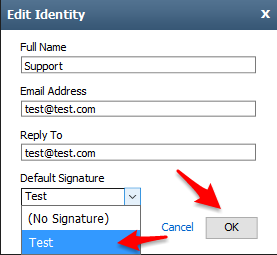
    To set a default Signature follow the steps below:

    Click the Identities tab, double-click your email address, and then enter the following information in the spaces provided.

    • Full Name: This name will appear in the From field of messages that you send.
    • Email Address: Enter the email address that should be displayed as the From email address.
    • Reply To: Enter in the email address that you want recipients to use when they reply to your email message. If you leave this field blank, the address you entered in the Email Address box is used automatically.
    • Default Signature: Select a signature to use with this identity.
  • WordPress Editor Issue with upgrading to 3.9+

    Many of our clients take advantage of a key feature we added to their WordPress editor, that is, Custom Styles, and additional buttons such as Sub and Sup Script. If you have upgraded you may have noticed that these custom style drop down menus and icons are no longer available.

    What we can tell is that the most recent version upgrade of WordPress included an update to the visual editor, that is the TinyMCE system that WordPress incorporates in their software, to a version 4. In this version some of the advanced functionality and customization that was previously allowed no longer is there.

    We are investigating this issue to see if there is a way to work around this but at the time their is no additional documentation to debug this issue, there are however thousands of forum posts of frustrated developers like us here at Blackrock Networks, Inc.

    This is an example of what used to work and no longer does.

    // BRN ADD A CUSTOM STYLE SHEET TO VISUAL EDITOR
    add_filter( ‘tiny_mce_before_init’, ‘my_custom_tinymce’ );

    function my_custom_tinymce( $init ) {
    $init[‘theme_advanced_buttons2_add_before’] = ‘styleselect’;
    $init[‘theme_advanced_styles’] = ‘blue’;
    return $init;
    }

    // display custom visual editor

    function themename_add_editor_styles() {
    add_editor_style( ‘custom-editor-style.css’ );
    }
    add_action( ‘init’, ‘themename_add_editor_styles’ );


  • The clock is ticking for Windows XP

    Yes, yes I know. Another post reminding users to take their Windows XP machines off line and either upgrade or get a new computer. Remember some computers running Windows XP may be to old to just handle the upgrade and you will need a beefier computer. On that note Microsoft is introducing a promotion of $100 towards an upgrade of their computer.Go to http://money.cnn.com/2014/03/24/technology/windows-xp-upgrade/index.html?iid=HP_LN for the discount and check out http://money.cnn.com/2014/04/04/technology/windows-8-start-menu/index.html for more.

    For those concerned about adjusting to the new look and feel of Windows 8 all is not lost. Instead two things have come to pass to help ease the transition. An announcement about the latest update to Windows 8, (Windows 8.1) that brings back the Start menu. That doesn’t mean MS is reverting, or folding under pressure but just making Windows 8 more palatable. Check out http://money.cnn.com/2014/03/24/technology/windows-xp-upgrade/index.html?iid=HP_LN for the discount and check out http://money.cnn.com/2014/04/04/technology/windows-8-start-menu/index.html?hpt=hp_t2 for more on how Windows 8.1 will look.


  • Blackrock Networks, Inc. and Constant Contact end old browser support

    LOTS TO KNOW THIS WEEK

    END OF LIFE for Windows XP: On April 8, 2014, support and updates from Microsoft for Windows XP will no longer be available. Don’t let your PC go unprotected.

    Time to upgrade your browser.
    On March 31st Constant Contact and Blackrock Networks, Inc. will stop supporting some older browser versions.

    Get the latest versions below.

    What Does “Support” Mean

    Support means that we will no longer fix issues that are specific to the older browsers. You older browser will still work, but you may experience issues.

    Like at  www.facebook.com/blackrocknetworks for system updates.

    Or +1 us on Google at www.google.com/+Blackrocknetworks for our great video tutorials and updates.

  • Why doesn’t my email arrive with an attachment?

    As a user recently reported an email I sent with an attachment never arrived. Not even in the Spam box. So what happened? Well my first thought is my email was blocked, but no.

    Emails without this particular attachment arrived fine. Next thought, the attachment is being flagged and the ISP is trashing it before it gets to the user. Not uncommon and most often seen with Comcast or Verizon. They love to decide if it is Spam before you can 🙂

    A user posted to a forum with this concern “I get a message that the mail was sent successfully but it never arrives at its destination. I have checked junk/spam mail folders, and it is not there. I also tried disabling outgoing message scanning, but it makes no difference. No attachments can be sent, regardless of file type, size, or number of attachments per e-mail.”

    So what to do?

    Try sending the file as a zip file attachment. (This has nothing to do with file size but all to do with spam filter scanning). This prevents a lot of Spam filters from scanning the document. Click here to find out how to compress a zip file.

    Final Note: Always follow up an email with an attachment with another email, text based. My bad I forgot this best practice, and my client thought I was ignoring them because they never got my email.

    Happy Sending.

  • What Browser version am I using?

    In any bug reporting a key item to replicating the issue is to know some key details.

    In Chrome follow these instructions.

    1) Click Setting in the upper right corner.

    2) Click About Google Chrome

    Chrome1 Capture2

    3) See what version and send these details to your tech support along with the Operating System you are using and what you did that resulted in the error.

    Some other useful links from Google.

    For Internet Explorer

    1) Go to Help > About Internet Explorer

    ie1

    2) See what version and send these details to your tech support along with the Operating System you are using and what you did that resulted in the error.

    ie2

    For Firefox

    1) Go to Help > About Firefox

    ff1

    2) See what version and send these details to your tech support along with the Operating System you are using and what you did that resulted in the error.

    ff2

    Don’t forget some other details that might be helpful to send to your support person.

    • What is the URL you used to visit the site?
    • What actions did you take that resulted in the “error”?
    • Send a screen shot of the steps you took.

    https://blog.blackrocknetworks.com/sending-a-screen-shot-from-a-mac/

    https://blog.blackrocknetworks.com/sending-a-screen-shot-from-a-pc/

  • Microsoft will end support for Windows XP April 8, 2014

    Just a reminder that come April 8, 2014 Microsoft will no longer provide support and security updates for Windows XP so you will need to upgrade to Windows 7 or 8 prior to this to prevent security risks. Don’t let your PC go unprotected.

    END OF LIFE INFO for XP: On April 8, 2014, support and updates from Microsoft for Windows XP will no longer be available.

    For additional IT and Computer upgrade support contact John Marczak

  • Wrap Text Around an Image

    Wrap Text Around an Image

    Untitled-9Text goes here. If your text is below the image make sure to check the alignment saved correctly.

    1) Select the image, or insert a new image

    2) In the edit image settings select the alignment. Left, Right, Center or None. Click save and the text will wrap.

  • Adobe’s Security Breach Widens

    Please review all your accounts, Amazon, eBay, your email, DropBox and any other services that use the same combination username and password and think about changing your password hint as well. Put a post it note near you to remind you to change anything using that login. It is likely you won’t remember all the places you use this so as you log in a year from now on a rarely accessed account remind yourself. Think about it, when was the last time you logged into your CVS pharmacy account, your Harvard Pilgrim account, or your GoDaddy account? Did you check these to see if you used the same combination?

    “Over the last week, the analysis of the Adobe breach has gotten more interesting.

    The actual file itself has been available via BitTorrent. I found a torrent file and looked through it myself. If you’re interested, note that the torrent gets you a 4+GB zip of the actual 10GB of text.

    …. The summary is that each record has an account number, an account name, an email address, the encrypted password (which is not a sophisticated format and can be reversed engineered), and the person’s password hint.” – http://krebsonsecurity.com/2013/11/facebook-warns-users-after-adobe-breach/


  • Add Email Signature with image link to Outlook

    Follow the details below to add an email signature to Outlook

    Open a new email

    Untitled-1

    Select Insert Tab

    Untitled-2

    Select Signature from the drop down menu

    Untitled-3

    Create New Signature

    Untitled-4

    Select the insert image icon

    Untitled-5

    Select Image from your computer and click insert

    Untitled-7

    Now set the image as a link by selecting the image and clicking the link icon

    Untitled-8

    Enter the URL you want to link to

    Untitled-9

    Select OK > Choose which signature you want for the default and now every time you open a new email your default signature will be added. You can create multiple signature to use for various email types and insert them while creating a new email by selecting signatures again.