Category: WordPress

  • Turn off Suggested Videos on YouTube and embed in WordPress

    Many people want to share their videos on their own website that have been uploaded to YouTube. A great idea considering that YouTube doesn’t charge for hosting videos. (At least not yet) But often when you embed a video you get a whole list of suggested videos at the end once your video is finished playing. Now who wants to send a website visitor to another website after doing so much to get them there in the first place.

    In this video you can see how to turn off the suggested video feature when you embed a YouTube video on your website or blog. This example shows embedding in a WordPress website.

  • Using Contact Form 7

    In many of the websites we develop in WordPress one of the more popular plugins we use is the Contact Form 7 plugin. It is fairly simple to use. A little short code added to a post or page and you have a contact form.

    Need a more customized contact form you cna add and edit feilds as needed to give it a very polished look.

    In the video below you can see how to edit form fields as well as change text to other languages if needed.

    Below are links to the documentation porovded by the devleoper of Contact Form 7

    Getting Started

    Creating Forms

  • WordPress Editor Issue with upgrading to 3.9+

    Many of our clients take advantage of a key feature we added to their WordPress editor, that is, Custom Styles, and additional buttons such as Sub and Sup Script. If you have upgraded you may have noticed that these custom style drop down menus and icons are no longer available.

    What we can tell is that the most recent version upgrade of WordPress included an update to the visual editor, that is the TinyMCE system that WordPress incorporates in their software, to a version 4. In this version some of the advanced functionality and customization that was previously allowed no longer is there.

    We are investigating this issue to see if there is a way to work around this but at the time their is no additional documentation to debug this issue, there are however thousands of forum posts of frustrated developers like us here at Blackrock Networks, Inc.

    This is an example of what used to work and no longer does.

    // BRN ADD A CUSTOM STYLE SHEET TO VISUAL EDITOR
    add_filter( ‘tiny_mce_before_init’, ‘my_custom_tinymce’ );

    function my_custom_tinymce( $init ) {
    $init[‘theme_advanced_buttons2_add_before’] = ‘styleselect’;
    $init[‘theme_advanced_styles’] = ‘blue’;
    return $init;
    }

    // display custom visual editor

    function themename_add_editor_styles() {
    add_editor_style( ‘custom-editor-style.css’ );
    }
    add_action( ‘init’, ‘themename_add_editor_styles’ );


  • How To Add Video In WordPress Posts: Embedding Video

    How To Add Video In WordPress Posts: Embedding Video

    How To Add Video In WordPress Posts: Embedding Video

  • WordPress Posts & Pages Tutorial – How To Work with WP Pages & Posts

    WordPress Posts & Pages Tutorial – How To Work with WP Pages & Posts

    WordPress Posts & Pages Tutorial – How To Work with WP Pages & Posts

  • Wrap Text Around an Image

    Wrap Text Around an Image

    Untitled-9Text goes here. If your text is below the image make sure to check the alignment saved correctly.

    1) Select the image, or insert a new image

    2) In the edit image settings select the alignment. Left, Right, Center or None. Click save and the text will wrap.

  • WordPress Upgrades may affect third party plugins

    WordPress Upgrades may affect third party plugins

    We will be updating WordPress when the new release comes out but this may create some bugs in third-party plugins installed. Note that if this happens there may be a charge in addressing the third-party issues.

    Posted at WordPress.org
    Posted December 10, 2013 by Matt Mullenweg. Filed under Development, Releases.

    “Release candidate 2 of WordPress 3.8 is now available for download. This is the last pre-release, and we expect it to be effectively identical to what’s officially released to the public on Thursday.

    This means if you are a plugin or theme developer, start your engines! (If they’re not going already.) Lots of admin code has changed so it’s especially important to see if your plugin works well within the new admin design and layout, and update the “Tested up to:” part of your plugin readme.txt.

    If there is something in your plugin that you’re unable to fix, or if you think you’ve found a bug, join us in #wordpress-dev in IRC, especially if you’re able to join during the dev chat on Wednesday, or post in the alpha/beta forum. The developers and designers who worked on this release are happy to help anyone update their code before the 3.8 release.”

  • What is WordPress?

    WordPress is a free and open source blogging tool and a content management system (CMS) based on PHP and MySQL which runs on a web hosting service. Features include a plug-in architecture and a template system. WordPress is used by over 18.9% of the top 10 million websites as of August 2013.WordPress is currently the most popular blogging system being used on the Web, powering over 60 million websites worldwide.

    It was first released on May 27, 2003, by founders Matt Mullenweg and Mike Little as a fork of b2/cafelog. As of April 2013, version 3.5 had been downloaded over 18 million times.

    One very popular feature of WordPress is its rich plugin architecture which allows users and developers to extend its abilities beyond the core installation. WordPress has a database of over 26,000 plugins each of which offers custom functions and features enabling users to tailor their sites to their specific needs. These customizations range from SEO (Search Engine Optimization) enhancers to content displaying features, such as the addition of widgets and navigation bars.

    (Source: http://en.wikipedia.org/wiki/WordPress)

    What You Can Use WordPress For?

    WordPress started as just a blogging system, but has evolved to be used as full content management system and so much more through the thousands of plugins and widgets and themes, WordPress is limited only by your imagination. (And tech chops.)

    (Source: http://wordpress.org/about)

  • Why can’t I install Plugins in WordPress?

    Why can’t I install Plugins in WordPress?

    A new study has found that roughly 20 percent of the 50 most popular plug-ins for the WordPress platform are vulnerable to common Web attacks.

    According to research from security vendor Checkmarx, that figure represents nearly 8 million downloads of plug-ins vulnerable to issues such as SQL injection, cross-site scripting, cross-site request forgery and path traversal. Additionally, the research revealed that seven out of the top 10 most popular e-commerce plug-ins for WordPress are vulnerable to attacks as well—translating to more than 1.7 million downloads – See more at: http://www.eweek.com/security/popular-wordpress-plugins-vulnerable-to-attack-checkmarx-research/#sthash.bZ27CNUY.dpuf

    As part of our security policy we don’t allow users to install third-party plugins for WordPress without prior review (we do not guarantee that a review will prevent security risks nor create incompatibility issues with your theme). As part of your hosting with us we provide you with a set of popular and reliable plugins to the best of our knowledge. These plugins meets most of our clients needs. If there is a specific plugin that you would like to install we would be happy to review it. Note that not all plugins are compatible with all themes and are often not tested with the latest versions of WordPress. A cost may be incurred to debug a plugin that causes problems with the website functionality.

    This policy has not only proven effective in preventing security risks for our clients websites but also ensures that your website will load fast and won’t be bogged down by code from multiple plugins.

    With the latest research  this only confirms our policy is the best options for our clients.

    While every line of code has the potential of introducing a vulnerability, Checkmarx found that there was no correlation between the number of lines of code and the vulnerability level of the plug-ins. On the contrary, some plug-ins included only a few thousand lines of code, but had more vulnerabilities than plug-ins containing tens of thousands of lines of code, according to the company’s paper.  – By Brian Prince


  • WordPress – Theme Options

    WordPress – Theme Options

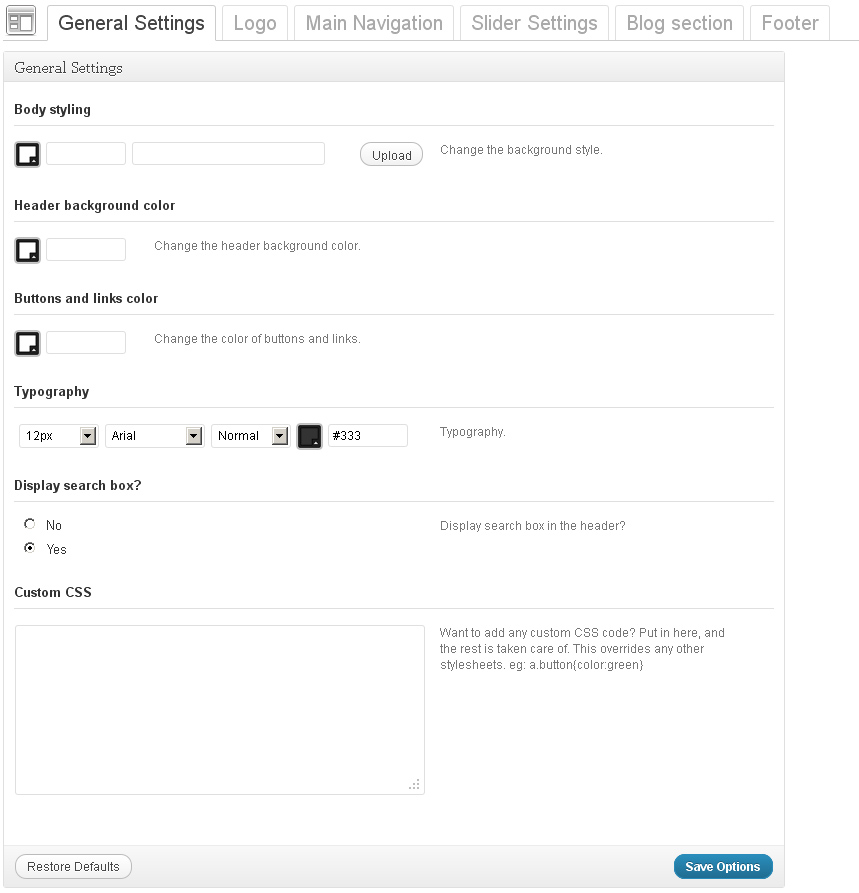
    The given theme contains the Settings option. These settings allow for easy and quick change of the theme color palette, the items order, items on /off etc. In order to use these settings please go to Appearance > Theme Options.

    General settings

    • Body styling – you can select the body color and background pattern.
    • Header background color – Header background color
    • Buttons and links color – Buttons and links color
    • Typography – a set of Typography settings
    • Display search box? – show/hide the search bar in the header
    • Custom CSS – if you need to add some css rules but you don’t want to mess with the main css file, you can use this field. Just insert your new css rules

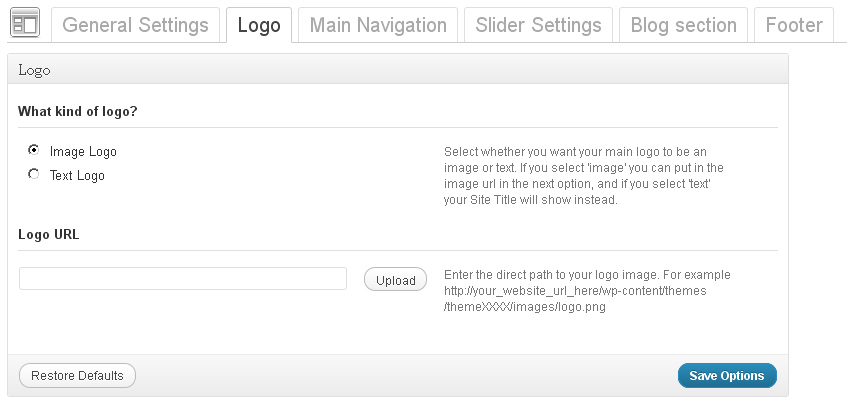
    Logo

    • What kind of logo? – indicates what kind of logo to use, whether the text one or the image logo.
    • Logo URL – with Image logo selected you can upload the new image with the help of the ‘upload’ feature or use any pic from the Media Library

    Main Navigation

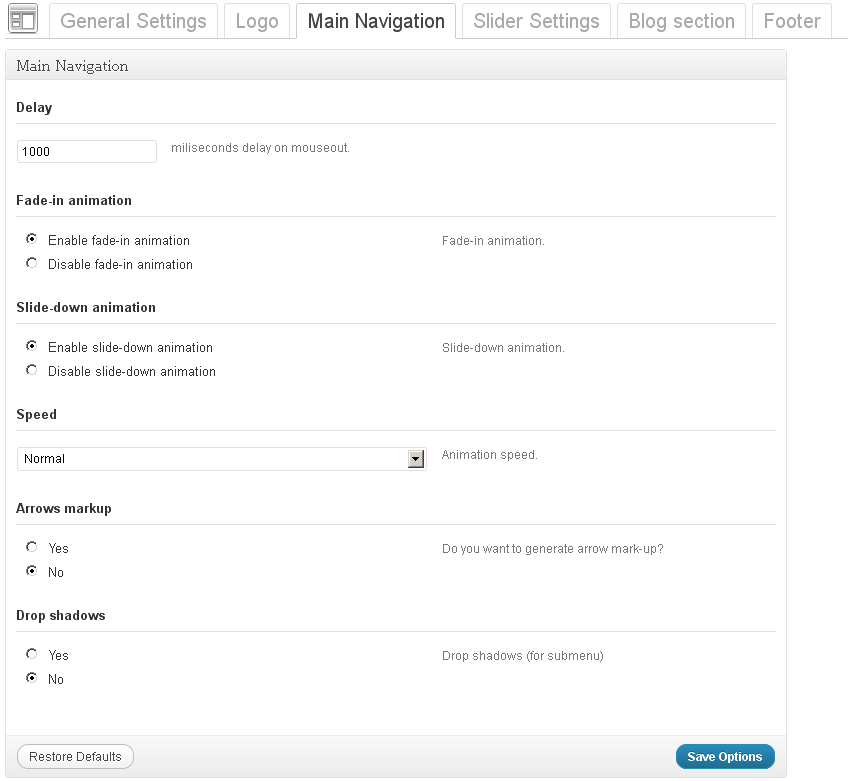
    • Delay – delay in milliseconds that defines when the menu hides
    • Fade-in animation – enabe/disable the fade-in animation
    • Slide-down animation – enabe/disable the slide animation
    • Speed – the speed of the submenu expanding
    • Arrows markup – enabe/disable arrows for the menu items that have submenus
    • Drop shadows – show/hide the submenu shadow

    Slider Settings

    • Slider effects – slider transition effect
    • Number of slices – amount of slices in the slider
    • Box columns – amount of box columns in the slider (for effects based on box animation only)
    • Box rows – amount of box rows in the slider (for effects based on box animation only)
    • Animation speed – the speed of the animation (ms)
    • Pause time – delay between slides (ms)
    • Display Next & Prev navigation – show/hide the Next & Prev buttons
    • Display Next & Prev navigation only on hover? – this options allows to specify when the Next & Prev navigation is displayed
    • Show Pagination – show or hide pagination (e.g. 1, 2, 3, 4 …)
    • Opacity of caption – caption opacity

    Blog section

    • Sidebar position – you can select the position for the sidebar(right or left)
    • Blog image size – the Image size (Normal size or Large size) for the Blog page
    • Single post image size – the image size (Normal size or Large size) for the single post page
    • Enable Meta for blog posts? – display meta for posts
    • Enable excerpt for blog posts? – display excerpt for posts

    Footer

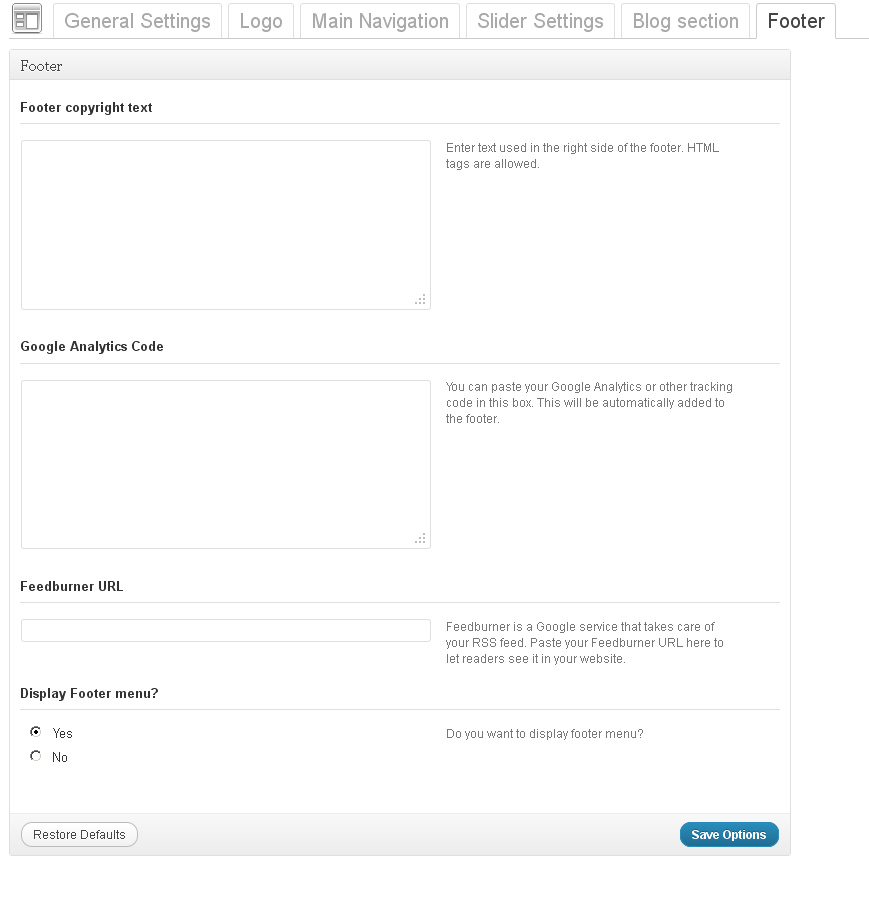
    • Footer copyright text – footer text content. If the text field is empty, the default content will be displayed. It is located in the footer.php file
    • Google Analytics Code -you can put a code for gathering your site’s SEO stats. . For instance, Google Analytics Code
    • Feedburner URL – Feedburner is a Google service that takes care of your RSS feed. Paste your Feedburner URL here to let readers see it in your website
    • Display Footer menu – enable or disable the footer menu

    Please note, these are common/standard theme options of our templates. Your particular template may include different options panels with different names and functionality. Please refer to your template documentation for the most accurate information.

  • WordPress – Plugins and Custom Widgets

    WordPress – Plugins and Custom Widgets

    The most common widgets used in the templates are listed below

    WP PageNavi

    Download: http://wordpress.org/extend/plugins/wp-pagenavi/
    Description: For page navigation.

    Contact Form 7

    Download: http://wordpress.org/extend/plugins/contact-form-7/
    Description: Contact form for contact page.

    Please note, these are the most used plugins of our templates. Your particular template may include different plugins with different names and functionality. Please refer to your template documentation for the most accurate information.

    Widgets

    The following widgets are also used in the theme:
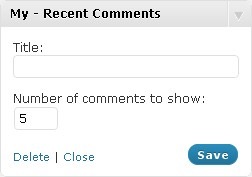
    My – Recent Comments

    Displays recent comments in a more convenient format. The given widget includes the following options:

    • Title: – Widget Title
    • Number of comments to show: – Number of Columns.
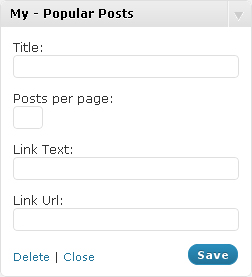
    My – Popular Posts Widget

    Displays popular posts. The following options are displayed:

    • Title: – Widget Title
    • Posts per page: – the number of posts to display.
    • Link Text: – the Link Text that is displayed in the Popular Posts.
    • Link Url: – the Link URL that is displayed in the Popular Posts.

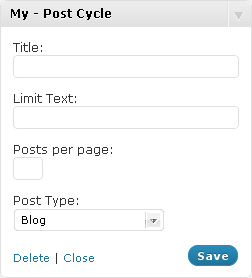
    My – Post Cycle

    Displays recent posts, you can also display custom posts. The Widget is used for the slideshow because of Cycle plugin in its structure. The given widget contains the following options:

    • Title: – Widget Title
    • Limit Text: – the number of words in the brief post description.
    • Posts per page: – the number of posts to display.
    • Post Type: – a Post Type selection.

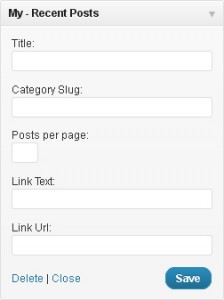
    My – Recent Posts

    Displays recent posts. You can also show custom posts of certain categories and add a read more link. The given Wdiget contains tge following options:

    • Title: – Widget Title
    • Category Slug: – Post Category Slug.
    • Posts per page: – the number of posts to display.
    • Link Text: – the Link Text that is displayed after the Recent Posts.
    • Link Url: – Link URL that is displayed after the Recent posts.
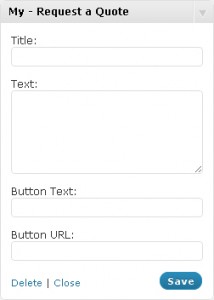
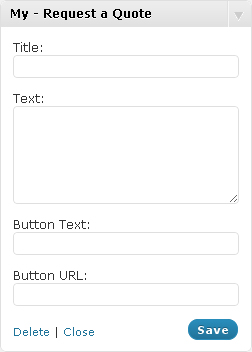
    My – Request a Quote

    An advanced text widget with a whole lot of extra fields. The given Widget contains the following fields:

    • Title: – Widget Title
    • Text: – Widget Text.
    • Button Text: – Button Text
    • Button URL: – Button URL

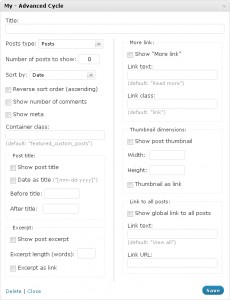
    My – Advanced Cycle

    The multifunctional widget used to display different post types including the blog posts, as well as the functionality of settings display. The given widget contains the following options:

    • Title: – Widget Title
    • Posts type: – select Posts type
    • Number of posts to show: – the number of posts
    • Sort by: – Post selection option
    • Reverse sort order (ascending): – reverse sort order
    • Show number of comments – show the number of comments
    • Show meta – show meta
    • Container class: – wrapper class. Set to featured_custom_posts by default
    • Show post title – show post title.
    • Date as title – for date usage instead of the title
    • Before title: – custom HTML-markup before Title
    • After title: – custom HTML-markup after Title
    • Show post excerpt – show excerpt
    • Excerpt length (words): – excerpt length (the number of words)
    • Excerpt as link – convert excerpt into a link
    • Show “More link” – show link More link after the post
    • Link text: – Link Text
    • Link class: – CSS-class for the link More link
    • Show post thumbnail – show thumbnail for a post
    • Width: – Image Width
    • Height: – Image Height
    • Thumbnail as link – convert the image into a link
    • Show global link to all posts – Show global link to all posts
    • Link text: – the text of the given link
    • Link URL: – Link URL

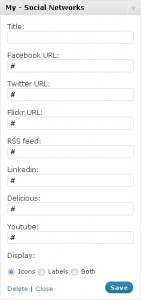
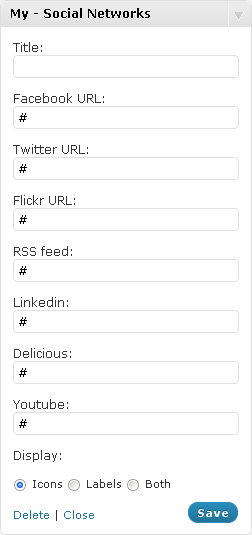
    My – Social Networks

    This is the Widget that allows linkage to your social network accounts. The widget contains the following options:

    • Title: – Widget Title
    • Facebook URL, Twitter URL, Flickr URL etc. – the links to your Social Network accounts
    • Display: the way of icons display.
      • Icons – icons only.
      • Labels – text only.
      • Both – icons and text.

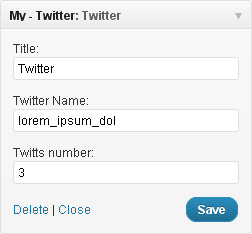
    My – Twitter

    This is the Widget that displays latest twitts from your twitter account. The widget contains the following options:

    • Title: – Widget Title
    • Twitter Name: – your twitter name
    • Twitts number: – amount of twitts to show.

    My – Flickr

    This is the Widget that displays photos from your flickr gallery. The widget contains the following options:

    • Title: – Widget Title
    • Flickr ID: – your flickr ID
    • Images count: – amount of photos to show.
    • Link Text: – text of link under flickr photos.

    Please note, these are standard and the most used widgets of our templates. Your particular template may include different widgets with different names and functionality. Please refer to your template documentation for the most accurate information.

  • WordPress – Shortcodes

    WordPress – Shortcodes

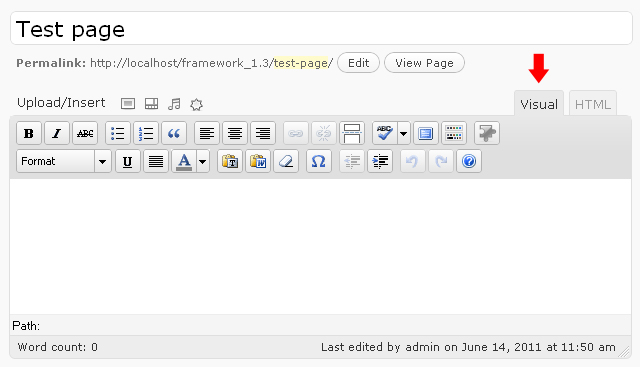
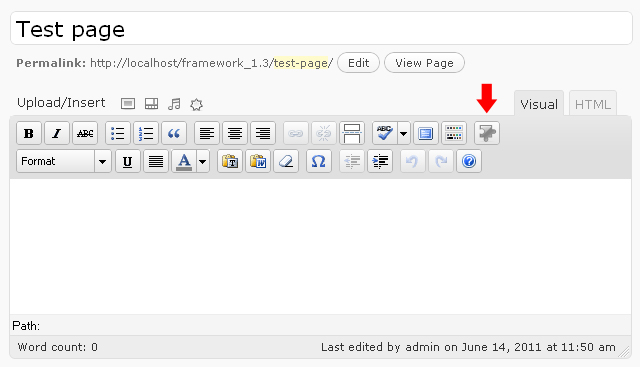
    Shortcode is a powerful content building tool http://codex.wordpress.org/Shortcode.Shortcodes are easy to use. First please make sure that the editing mode is set to visualThen please click the button for the shortcodes.

    Please select the shortcode you want to insert.

    There are following shortcodes available:

      1. Basic
        • Recent Posts – for recent shortcodes with a number of settings.
        • Recent Testimonials – for recent testimonials
        • Popular Posts – for the popular posts
        • Recents Comments – for the recent comments
        • Tags – for the TagCloud
      2. Grid columns
        • grid_1
        • grid_2
        • grid_3
        • … – the given shortcodes are used for the layout framework on the basis of 960gs.
      3. Fluid columns
        • 1/2
        • 1/3
        • 2/3
        • … – the given shortcodes are used for the layout framework on the basis of fluid columns
      4. HTML
        • Button – the shortcode for the button
        • Drop Cap – to make the first letter in the paragraph an uppercase letter.
        • Blockquote – for a quotation
        • Frame – a wrapper for the image or any other object
        • Frame Left – a wrapper for the image or any other object with the left side location
        • Frame Right – a wrapper for the image or any other object with the right side location
        • Horizontal Rule – the horizontal separation line
      5. Alert Boxes
        • Alert – the Error Box
        • Approved – the Approve Box
        • Attention – the Attention box
        • Notice – the Notice Box
      6. Audio & Video
        • Audio – insert audio (HTML support)
        • Video – insert video. Youtube, Vimeo files can be embedded as well as any file located on your server.
      7. Tabs
        • Shortcode for Tabs.
      8. Toggle
        • Shortcode for toggle-script. With a number of such scripts added you can get Accordion.

    Please note, these are standard and the most used shortcodes of our templates. Your particular template may include different shortcodes with different names and functionality. Please refer to your template documentation for the most accurate information.
  • WordPress – Creating Portfolio Pages

    WordPress – Creating Portfolio Pages

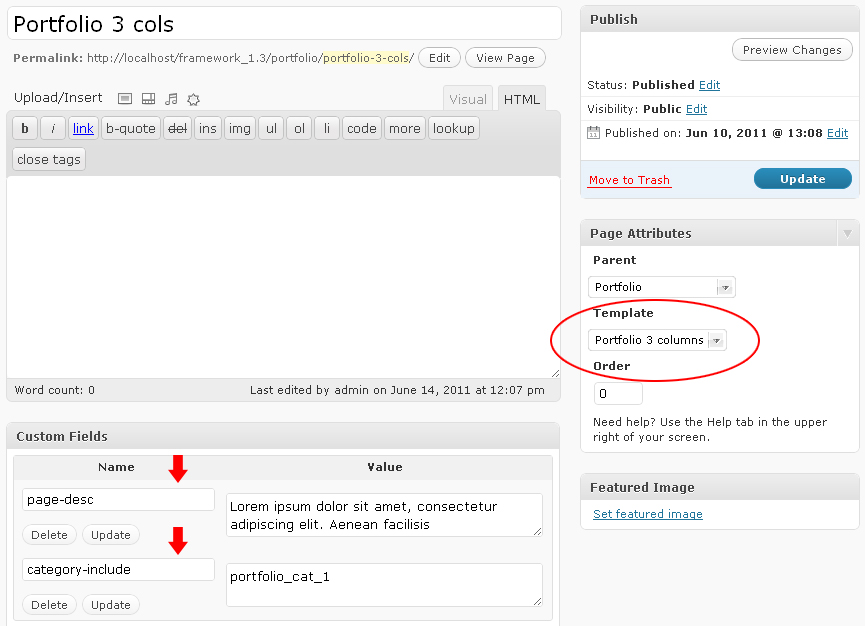
    Portfolio pages can be created with the help of page templates

    1. Log in to your WordPress Administration Panel (Dashboard).
    2. Click the Pages tab
    3. Click the Add New tab
    4. Type in your page name, for example Portfolio page
    5. Select your page template ( Portfolio 1 column, Portfolio 2 columns, Portfolio 3 columns or Portfolio 4 columns in the Page Attributes drop-down menu)
    6. The following custom fields are available for Portfolio page template:
      • page-desc – page description
      • category-include – name of the category that is displayed on this Portfolio page. You need to use the slug of the category here.
    7. With that done, click the Publish button

    Note: Please do not post any content to the editor field if you use one of the pages templates.

    Please note, portfolio page templates and portfolio custom post type may have different names, e.g.: Gallery, Services, Project etc.

  • WordPress – Posts and Categories

    WordPress – Posts and Categories

    Adding a category

    Review the following link for more info on adding categories: http://codex.wordpress.org/Manage_Categories_SubPanel

    1. Log in to your WordPress Administration Panel (Dashboard).
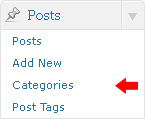
    2. Click the Post tab
    3. That done, click Categories for blog posts
    4. Type in the name of your new category
    5. With that done, click the Add New Category button

    Creating a blog post

    1. Log in to your WordPress Administration Panel (Dashboard).
    2. Click the Posts tab
    3. And click the Add New tab
    4. Type in your post content. For more info on adding posts, please review the following link http://codex.wordpress.org/Posts_Add_New_SubPanel
    5. And finally click the Publish button

    Creating a blog post

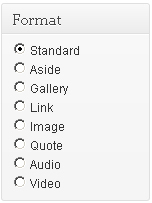
    Review the following link for more info about post formats: http://codex.wordpress.org/Post_Formats

    Creating a slider post (slide)

    Slides are essentially custom post types http://codex.wordpress.org/Post_Types#Custom_Types. which means that they are different from common posts, such as blog posts, portfolio posts etc. That allows us to manage the content of the site really easy.

    The following slider runs on Nivo Slider.

    Please note, your template may use another slider plugin. Please refer to your template documentation for the most accurate information.
    1. Log in to your WordPress Administration Panel (Dashboard).
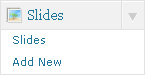
    2. Click the Slider tab
    3. And now click the Add New tab
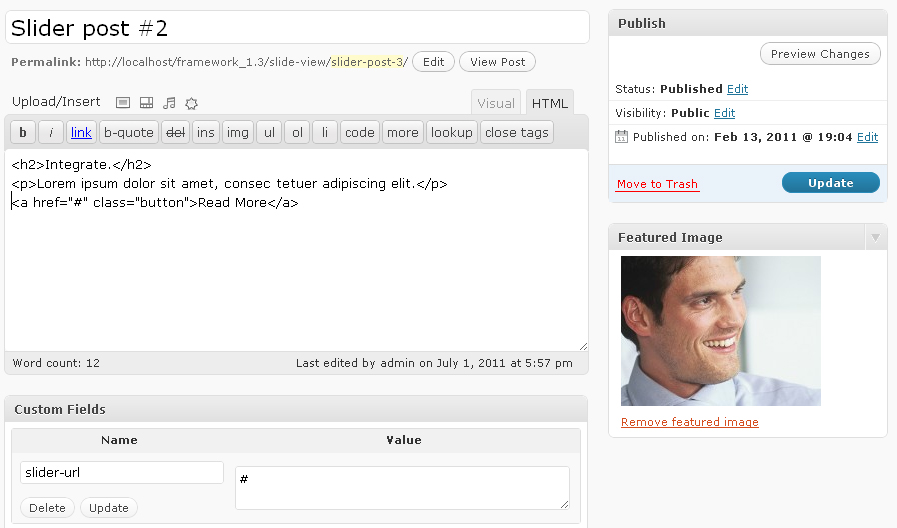
    4. Insert your slider title.
    5. Upload your image with the help of the Featured Image option (click the Set featured image link)
    6. You can use the following custom fields for your slider:
      • slider-url – link for the slider image.
    7. For the slider description please use the post edit option. The slider description can contain the HTML-markup, f.e:
      1
      2
      3
      <h2>Integrate.</h2>
      <p>Lorem ipsum dolor sit amet, consec tetuer adipiscing elit.</p>
      <a href="#" class="button">Read More</a>
    8. And click the Publish button

    Adding a portfolio post

    Portfolio items are essentially custom post types http://codex.wordpress.org/Post_Types#Custom_Types. which means that they are different from common posts, such as blog posts, portfolio posts etc. That allows us to manage the content of the site really easy.

    1. Log in to your WordPress Administration Panel (Dashboard).
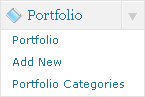
    2. Click the Portfolio tab
    3. And now the Add New one
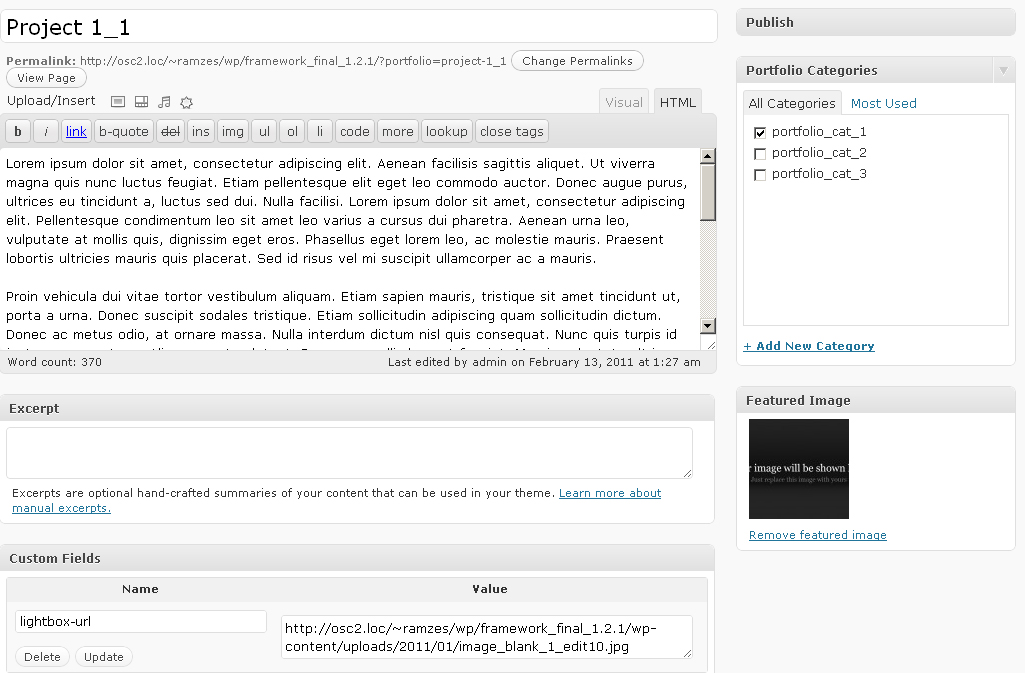
    4. Fill in all the required fields (title, content)
    5. Upload your image with the help of the Featured Image option (click the Set featured image link)
    6. The following options are available for a porfolio post:
      • lightbox-url – path to the large image. Once clicked it’ll pop up with the help of prettyPhoto
    7. And push the Publish button

    Adding a Testimonials post

    1. Log in to your WordPress Administration Panel (Dashboard).
    2. Click the Testimonials tab
    3. And click the Add New tab
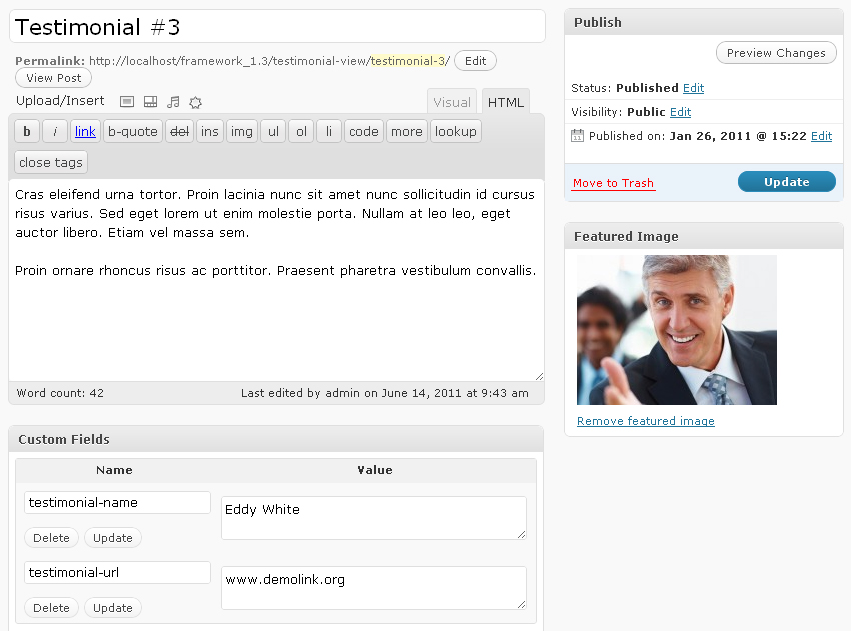
    4. Fill in all the required fields (title, content)
    5. Upload your image with the help of the Featured Image option (click the Set featured image link)
    6. You can use the folowing custom fields for this sort of posts:
      • testimonial-name – authors’s name
      • testimonial-url – author’s link
    7. Hit the Publish button

    Adding an FAQs post

    1. Log in to your WordPress Administration Panel (Dashboard).
    2. Click the FAQs tab
    3. And now the Add New button
    4. Since it is a question/answer type of post, the title of the post is the question and the content is the answer.
    5. Click Publish

    Adding an Our Team post

    1. Log in to your WordPress Administration Panel (Dashboard).
    2. Click the Our Team tab
    3. And now the Add New button
    4. Fill in all the required fields (title, content)
    5. Upload your image with the help of the Featured Image option (click the Set featured image link)
    6. Click Publish

    Adding a Service post

    1. Log in to your WordPress Administration Panel (Dashboard).
    2. Click the Services tab
    3. And now the Add New button
    4. Fill in all the required fields (title, content)
    5. Upload your image with the help of the Featured Image option (click the Set featured image link)
    6. Click Publish

    Please note, these are the most used custom posts types of our templates. Your particular template may include different posts types with different names and appearance. Please refer to your template documentation for the most accurate information.
  • WordPress Page Templates and Sidebars

    WordPress Page Templates and Sidebars

    Please note, these are the most used page templates of our templates. Your particular template may include different page templates with different names. Please refer to your template documentation for the most accurate information.

    Page Templates

    • Default Template (the default page template with a right sidebar position)
    • Full Width (a page template with one column and no sidebar positions)
    • Portfolio 1 column (the page template for 1 column portfolio display)
    • Portfolio 2 columns (the page template for 2 columns portfolio display)
    • Portfolio 3 columns (the page template for 3 columns portfolio display)
    • Portfolio 4 columns (the page template for 4 columns portfolio display)
    • Page Testimonials (the page template for testimonials posts display)
    • Page FAQs (the page template for displaying FAQs)

    Sidebar Position

    Please note, these are the most used sidebar positions of our templates. Your particular template may include different sidebar positions with different names. Please refer to your template documentation for the most accurate information.
    • Header – Located at the top of pages
    • Before Home Page Content – Located at the top of the Home Page content.
    • Home Page Content – Located at the middle of the Home Page content.
    • After Home Page Content – Located at the bottom of the Home Page content.
    • Sidebar – Located on the right hand side or left hand side of pages
    • Footer – Located at the bottom of pages.