Blog

  • Wrap Text Around an Image

    Wrap Text Around an Image

    Untitled-9Text goes here. If your text is below the image make sure to check the alignment saved correctly.

    1) Select the image, or insert a new image

    2) In the edit image settings select the alignment. Left, Right, Center or None. Click save and the text will wrap.

  • WordPress Upgrades may affect third party plugins

    WordPress Upgrades may affect third party plugins

    We will be updating WordPress when the new release comes out but this may create some bugs in third-party plugins installed. Note that if this happens there may be a charge in addressing the third-party issues.

    Posted at WordPress.org
    Posted December 10, 2013 by Matt Mullenweg. Filed under Development, Releases.

    “Release candidate 2 of WordPress 3.8 is now available for download. This is the last pre-release, and we expect it to be effectively identical to what’s officially released to the public on Thursday.

    This means if you are a plugin or theme developer, start your engines! (If they’re not going already.) Lots of admin code has changed so it’s especially important to see if your plugin works well within the new admin design and layout, and update the “Tested up to:” part of your plugin readme.txt.

    If there is something in your plugin that you’re unable to fix, or if you think you’ve found a bug, join us in #wordpress-dev in IRC, especially if you’re able to join during the dev chat on Wednesday, or post in the alpha/beta forum. The developers and designers who worked on this release are happy to help anyone update their code before the 3.8 release.”

  • How to Add HTML Signatures to your Gmail Account – Video Tutorial

    How to Add HTML Signatures to your Gmail Account – Video Tutorial

    I get this questions a few times a year from clients that use our business email hosting but might use Gmail for their personal accounts.

    You can also find links to other plugins and options for creating the signature. Such as creating in another program such as Word and pasting it into gmail at http://www.labnol.org/internet/gmail-html-signatures/

  • Adobe’s Security Breach Widens

    Please review all your accounts, Amazon, eBay, your email, DropBox and any other services that use the same combination username and password and think about changing your password hint as well. Put a post it note near you to remind you to change anything using that login. It is likely you won’t remember all the places you use this so as you log in a year from now on a rarely accessed account remind yourself. Think about it, when was the last time you logged into your CVS pharmacy account, your Harvard Pilgrim account, or your GoDaddy account? Did you check these to see if you used the same combination?

    “Over the last week, the analysis of the Adobe breach has gotten more interesting.

    The actual file itself has been available via BitTorrent. I found a torrent file and looked through it myself. If you’re interested, note that the torrent gets you a 4+GB zip of the actual 10GB of text.

    …. The summary is that each record has an account number, an account name, an email address, the encrypted password (which is not a sophisticated format and can be reversed engineered), and the person’s password hint.” – http://krebsonsecurity.com/2013/11/facebook-warns-users-after-adobe-breach/


  • What is WordPress?

    WordPress is a free and open source blogging tool and a content management system (CMS) based on PHP and MySQL which runs on a web hosting service. Features include a plug-in architecture and a template system. WordPress is used by over 18.9% of the top 10 million websites as of August 2013.WordPress is currently the most popular blogging system being used on the Web, powering over 60 million websites worldwide.

    It was first released on May 27, 2003, by founders Matt Mullenweg and Mike Little as a fork of b2/cafelog. As of April 2013, version 3.5 had been downloaded over 18 million times.

    One very popular feature of WordPress is its rich plugin architecture which allows users and developers to extend its abilities beyond the core installation. WordPress has a database of over 26,000 plugins each of which offers custom functions and features enabling users to tailor their sites to their specific needs. These customizations range from SEO (Search Engine Optimization) enhancers to content displaying features, such as the addition of widgets and navigation bars.

    (Source: http://en.wikipedia.org/wiki/WordPress)

    What You Can Use WordPress For?

    WordPress started as just a blogging system, but has evolved to be used as full content management system and so much more through the thousands of plugins and widgets and themes, WordPress is limited only by your imagination. (And tech chops.)

    (Source: http://wordpress.org/about)

  • Add Email Signature with image link to Outlook

    Follow the details below to add an email signature to Outlook

    Open a new email

    Untitled-1

    Select Insert Tab

    Untitled-2

    Select Signature from the drop down menu

    Untitled-3

    Create New Signature

    Untitled-4

    Select the insert image icon

    Untitled-5

    Select Image from your computer and click insert

    Untitled-7

    Now set the image as a link by selecting the image and clicking the link icon

    Untitled-8

    Enter the URL you want to link to

    Untitled-9

    Select OK > Choose which signature you want for the default and now every time you open a new email your default signature will be added. You can create multiple signature to use for various email types and insert them while creating a new email by selecting signatures again.

  • How to Create Anchor Tags

    Anchor Tags are links to another section within the same page. They are created by using the the <a> tag and an ID.

    Example:

    Section 1 (The code would look like this) <p><a id=”Section1″>Section 1</a></p>
    Sample text here.

    Section 2
    Sample text here.

    Section 3
    Sample text here.

    Chapter 4
    Sample text here.

  • How to take a screen shot on an iPhone?

    Simultaneously hold down the Home and Sleep/Wake buttons, then release them together. You’ll hear the same  sound the iPhone makes when you use camera to take a photo.

    The snapshot will be in the Camera Roll album on the iPhone and in Saved Photos on the iPad.

    http://www.apple.com/itunes/inside-itunes/2010/04/how-to-grab-screenshots-on-iphone-ipad-and-ipod-touch.html

  • Why can’t I install Plugins in WordPress?

    Why can’t I install Plugins in WordPress?

    A new study has found that roughly 20 percent of the 50 most popular plug-ins for the WordPress platform are vulnerable to common Web attacks.

    According to research from security vendor Checkmarx, that figure represents nearly 8 million downloads of plug-ins vulnerable to issues such as SQL injection, cross-site scripting, cross-site request forgery and path traversal. Additionally, the research revealed that seven out of the top 10 most popular e-commerce plug-ins for WordPress are vulnerable to attacks as well—translating to more than 1.7 million downloads – See more at: http://www.eweek.com/security/popular-wordpress-plugins-vulnerable-to-attack-checkmarx-research/#sthash.bZ27CNUY.dpuf

    As part of our security policy we don’t allow users to install third-party plugins for WordPress without prior review (we do not guarantee that a review will prevent security risks nor create incompatibility issues with your theme). As part of your hosting with us we provide you with a set of popular and reliable plugins to the best of our knowledge. These plugins meets most of our clients needs. If there is a specific plugin that you would like to install we would be happy to review it. Note that not all plugins are compatible with all themes and are often not tested with the latest versions of WordPress. A cost may be incurred to debug a plugin that causes problems with the website functionality.

    This policy has not only proven effective in preventing security risks for our clients websites but also ensures that your website will load fast and won’t be bogged down by code from multiple plugins.

    With the latest research  this only confirms our policy is the best options for our clients.

    While every line of code has the potential of introducing a vulnerability, Checkmarx found that there was no correlation between the number of lines of code and the vulnerability level of the plug-ins. On the contrary, some plug-ins included only a few thousand lines of code, but had more vulnerabilities than plug-ins containing tens of thousands of lines of code, according to the company’s paper.  – By Brian Prince


  • Why we don’t offer FTP?

    We are often asked if we can host standard HTML pages which are uploaded via FTP (File Transfer Protocol). We can host all types of files however we do not provide FTP access. If you choose to host on the Blackrock Networks, Inc. servers, you can use our Content Management System (CMS), WordPress of another CMS solution with us.

    Our CMS allows you to create, update & delete web pages using only a web browser. With it you can upload images to display on your web pages, or make files available for download.

    This is by design as it minimizes server administration and reduces overall security risk.

    Specifically, we do not offer FTP service because it is an insecure protocol (i.e. sends passwords in the clear without encryption). This is a huge security risk. While there are secure alternatives, such as SFTP and SSH, we have chosen not to support them as this can still allow clients to inadvertently upload files that may lead to security holes on their website, and our CMS makes those services unnecessary.

  • End of Support: Verizon

    For any of our clients who also have Verizon for personal email accounts we are posting this notice as well. They will end support for their current settings below in September 2013.

    https://www22.verizon.com/ForYourHome/VZRepair/vziha/Service.aspx?ihaweb=EmailSetup

    http://www22.verizon.com/Support/Residential/internet/highspeed/general+support/top+questions/questionsone/124274.htm#

    verizon

  • Am I at the right URL

    Every thought you typed in the correct domain name but only to find yourself at the wrong place or getting a security error. Sometimes browsers try to do the thinking for you and if you start a domain with say just www.blackrocknetworks.com it will put http:// at the beginning for you. Great right?

    But what if you want to get to the Secure site with the SSL certificate installed. You have to make sure that the beginning has that all important “s” for security. It should say https://www.domainname.com

    Now for the all important question, how can I tell? You would think this would be easy just look at the address bar for the URL and there it is.

    url

    But no, on a number of browsers they hide the prefix http:// and https:// so how is a non-tech person supposed to figure it out. Here is a easy way to check.

    1) Select the URL in the address bar

    2) Copy and paste it into a plain text editor. It will paste the entire text.

    3) Check to see if the http:// has a s in it.

    OR Watch the video below by Blackrock Networks, Inc.’s YouTube Channel.

  • PDF Viewer in Firefox

    PDF Viewer in Firefox

    Have you noticed lately that every time you open a PDF it tells you it may not display properly in this viewer? Would you like to use another?

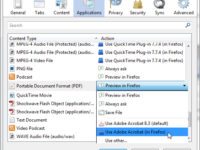
    This can get pretty annoying, especially if you have to save the document to open it in another application. The latest Firefox update replaced the default PDF viewer with theirs. In order to get Adobe PDF viewer back do the following:

    1. Click on the Firefox button and then select Options
    2. Select the Applications panel.
    3. Find Portable Document Format (PDF) in the list and click on it to select it.
    4. Click on the drop-down arrow in the Action column for the above entry and select Use PDF reader name (in Firefox).

    changePDFplugin

  • Sending Large Files

    Sending Large Files

    So you need to send some large files to us so we can add them to your website.

    There are two recommended options. One is through a vendor called YouSendIt and the other is through DropBox. YouSendIt is suited for one time file sending while DropBox is good for projects and files that might need to be edited frequently.

    To Learn how to compress folder click here.

    Option 1: Sending through YouSendIt.com

    Option 2: How do I add or upload files to my Dropbox?

    How do I upload files from my phone or tablet with Dropbox?

    First you will need the Dropbox mobile app which can be downloaded here. Next Follow the direction provided at Dropbox by going here.


  • End of Support for SMTP Authentication Using CRAM-MD5

    Hello,

    On June 26, 2013, Blackrock Networks, Inc.  will be performing a maintenance on the Blackrock Networks, Inc. Email and Microsoft Hosted Exchange environments which will remove the ability for mail clients to send mail using the legacy authentication protocol, CRAM-MD5. Once removed, a very small portion of our customers may lose the ability to send mail until their mail client’s SMTP authentication method is changed.

    Why is Blackrock Networks, Inc. making this change? Blackrock Networks, Inc. is continually striving to improve the quality, usability, and security of our mail offering. While CRAM-MD5 is a secure authentication protocol, the industry as a whole has been migrating away from using this mechanism. The recommended method for sending mail today is to use PLAIN/PASSWORD authentication over an SSL or TLS connection.

    Will I be impacted? Our extensive testing in preparation for this maintenance has proven that the vast majority of mail clients do not use CRAM-MD5 by default. It is very difficult to pinpoint each and every mail client, version, device, etc that could be impacted, although we do know that if you are running one of the following configurations you could be impacted by this change:

    * NOTE: Customers using iPhones with Mobile Sync enabled will NOT be impacted.

    I’m impacted / will be impacted… How do I fix this? If you feel you may be impacted, or after the maintenance is complete you are no longer able to send mail from your email client, you can resolve this issue using one of the following means:

    1. Re-configure your mail client so it does not use CRAM-MD5 authentication for SMTP (sending).
    2. We also suggest connecting to our system via SSL or TLS when sending mail.

    Is there a workaround while I’m trying to set this up properly? Absolutely! You can always login to webmail to access and send email like normal should you experience issues and need to send something quickly.

    Are we the only ones? No. There are a number of companies that are changing settings as servers are upgraded. See this post on Verizon, they will end their support in September 2013 for their current settings.