Category: FAQ

  • How do I add other admins or change admin roles for my Facebook Page?

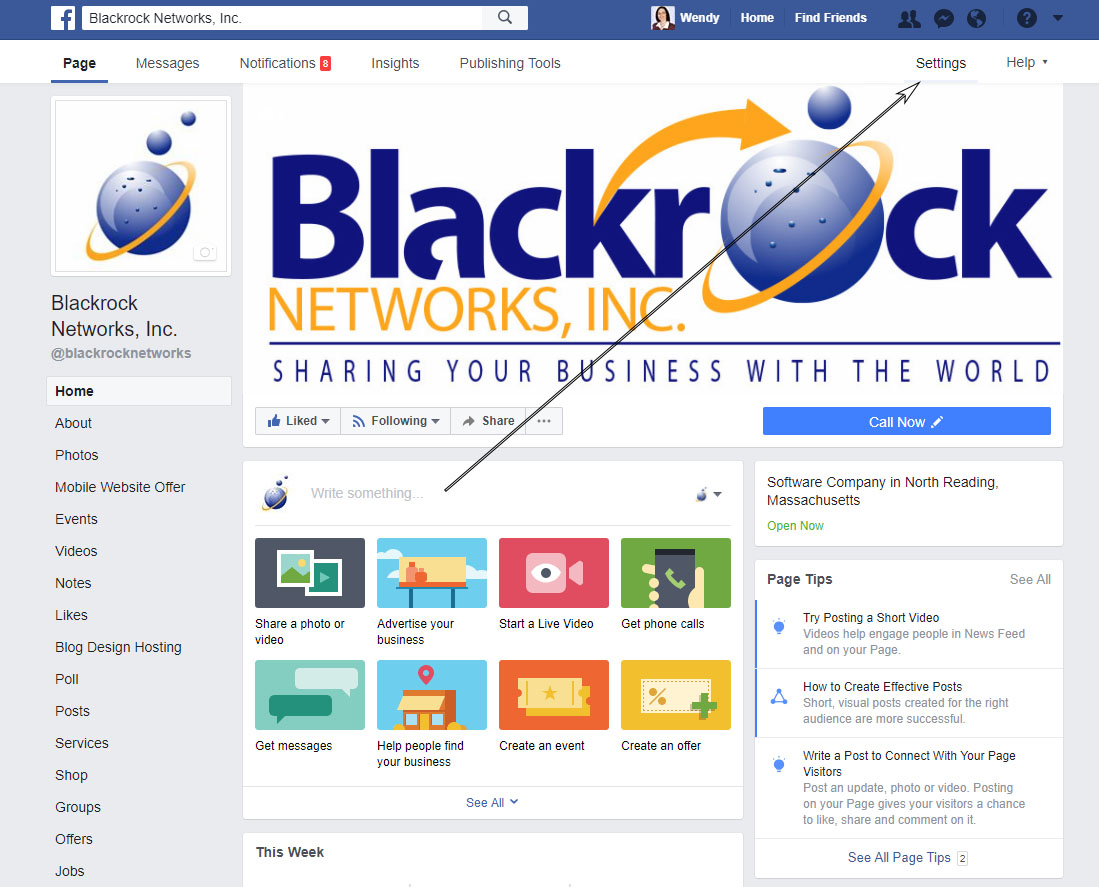
    To add Blackrock Networks, Inc. as an admin to your Facebook Page: (Updated for 2017)

    Note you have to first have created a page, (We don’t recommend you go it alone contact us if you need to create one.)

    1. Click on Settings in the top right corner of the business page (not the very top of the browser)

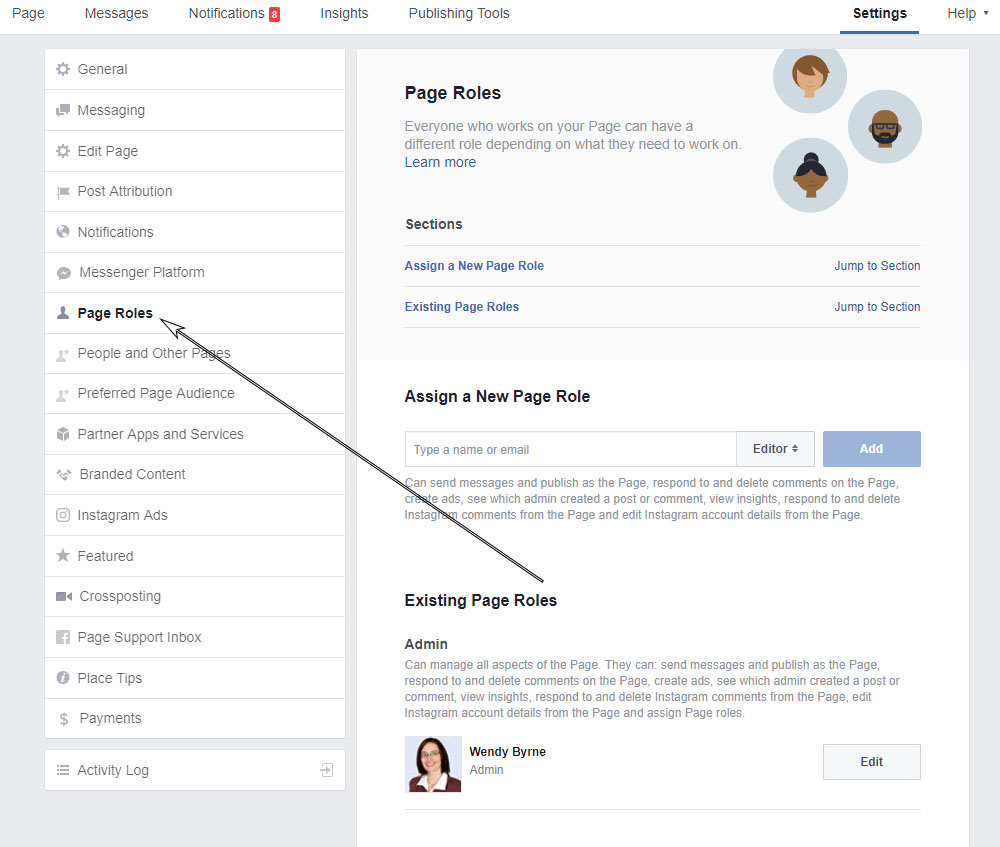
    2. Click on Page Roles on the left side

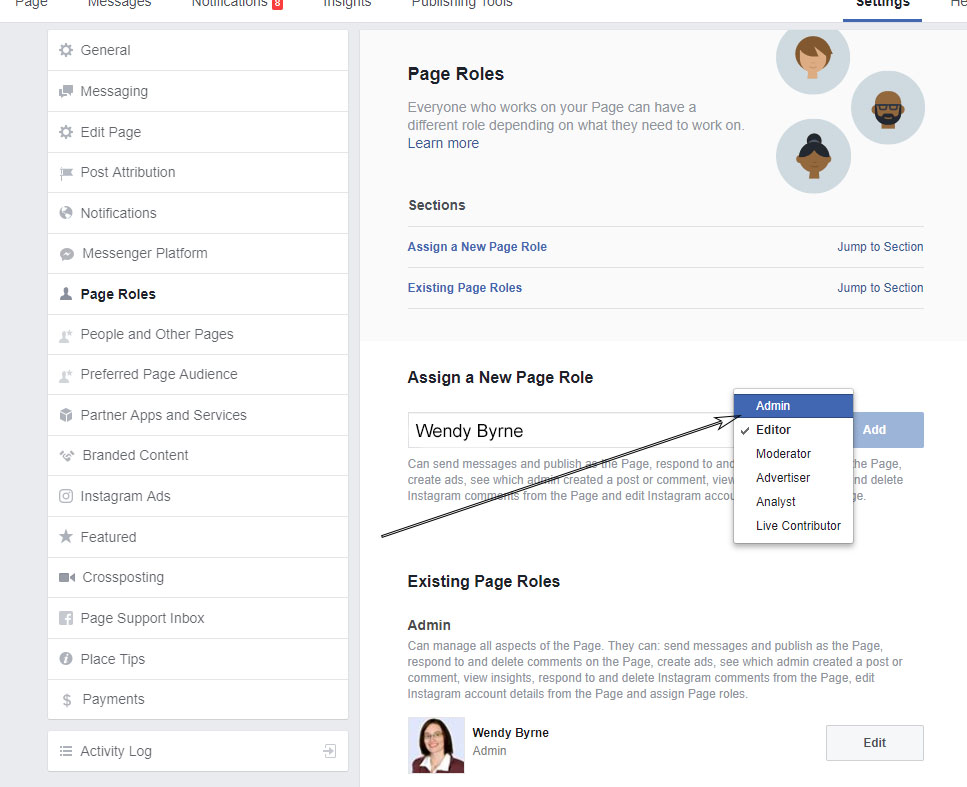
    3. Under the Assign a new page role start typing Wendy Byrne or the tech assigned to your account  (as long as we have liked the page we should show up)


    4. Change the Editor access to Admin so we can fully manage your page.

    5. Click Add

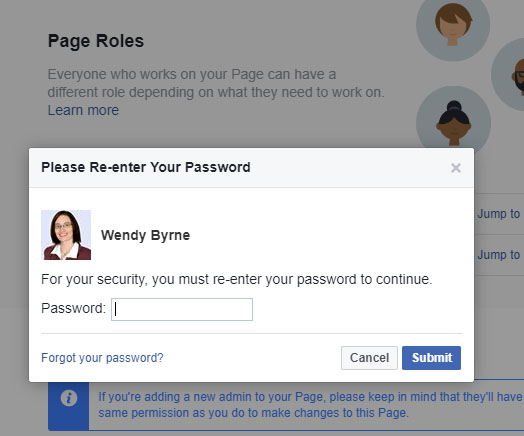
    6. You will be promoted to re-enter your password for security purposes. Enter your password and click Submit.

    That’s it. The new admin will now received an email and they will need to click accept and they should now see your page in the list of accounts they manage.

  • Why doesn’t my email arrive with an attachment?

    As a user recently reported an email I sent with an attachment never arrived. Not even in the Spam box. So what happened? Well my first thought is my email was blocked, but no.

    Emails without this particular attachment arrived fine. Next thought, the attachment is being flagged and the ISP is trashing it before it gets to the user. Not uncommon and most often seen with Comcast or Verizon. They love to decide if it is Spam before you can 🙂

    A user posted to a forum with this concern “I get a message that the mail was sent successfully but it never arrives at its destination. I have checked junk/spam mail folders, and it is not there. I also tried disabling outgoing message scanning, but it makes no difference. No attachments can be sent, regardless of file type, size, or number of attachments per e-mail.”

    So what to do?

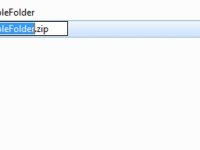
    Try sending the file as a zip file attachment. (This has nothing to do with file size but all to do with spam filter scanning). This prevents a lot of Spam filters from scanning the document. Click here to find out how to compress a zip file.

    Final Note: Always follow up an email with an attachment with another email, text based. My bad I forgot this best practice, and my client thought I was ignoring them because they never got my email.

    Happy Sending.

  • Why can’t I install Plugins in WordPress?

    Why can’t I install Plugins in WordPress?

    A new study has found that roughly 20 percent of the 50 most popular plug-ins for the WordPress platform are vulnerable to common Web attacks.

    According to research from security vendor Checkmarx, that figure represents nearly 8 million downloads of plug-ins vulnerable to issues such as SQL injection, cross-site scripting, cross-site request forgery and path traversal. Additionally, the research revealed that seven out of the top 10 most popular e-commerce plug-ins for WordPress are vulnerable to attacks as well—translating to more than 1.7 million downloads – See more at: http://www.eweek.com/security/popular-wordpress-plugins-vulnerable-to-attack-checkmarx-research/#sthash.bZ27CNUY.dpuf

    As part of our security policy we don’t allow users to install third-party plugins for WordPress without prior review (we do not guarantee that a review will prevent security risks nor create incompatibility issues with your theme). As part of your hosting with us we provide you with a set of popular and reliable plugins to the best of our knowledge. These plugins meets most of our clients needs. If there is a specific plugin that you would like to install we would be happy to review it. Note that not all plugins are compatible with all themes and are often not tested with the latest versions of WordPress. A cost may be incurred to debug a plugin that causes problems with the website functionality.

    This policy has not only proven effective in preventing security risks for our clients websites but also ensures that your website will load fast and won’t be bogged down by code from multiple plugins.

    With the latest research  this only confirms our policy is the best options for our clients.

    While every line of code has the potential of introducing a vulnerability, Checkmarx found that there was no correlation between the number of lines of code and the vulnerability level of the plug-ins. On the contrary, some plug-ins included only a few thousand lines of code, but had more vulnerabilities than plug-ins containing tens of thousands of lines of code, according to the company’s paper.  – By Brian Prince


  • Why we don’t offer FTP?

    We are often asked if we can host standard HTML pages which are uploaded via FTP (File Transfer Protocol). We can host all types of files however we do not provide FTP access. If you choose to host on the Blackrock Networks, Inc. servers, you can use our Content Management System (CMS), WordPress of another CMS solution with us.

    Our CMS allows you to create, update & delete web pages using only a web browser. With it you can upload images to display on your web pages, or make files available for download.

    This is by design as it minimizes server administration and reduces overall security risk.

    Specifically, we do not offer FTP service because it is an insecure protocol (i.e. sends passwords in the clear without encryption). This is a huge security risk. While there are secure alternatives, such as SFTP and SSH, we have chosen not to support them as this can still allow clients to inadvertently upload files that may lead to security holes on their website, and our CMS makes those services unnecessary.

  • PDF Viewer in Firefox

    PDF Viewer in Firefox

    Have you noticed lately that every time you open a PDF it tells you it may not display properly in this viewer? Would you like to use another?

    This can get pretty annoying, especially if you have to save the document to open it in another application. The latest Firefox update replaced the default PDF viewer with theirs. In order to get Adobe PDF viewer back do the following:

    1. Click on the Firefox button and then select Options
    2. Select the Applications panel.
    3. Find Portable Document Format (PDF) in the list and click on it to select it.
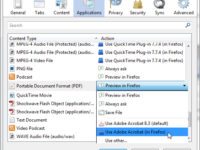
    4. Click on the drop-down arrow in the Action column for the above entry and select Use PDF reader name (in Firefox).

    changePDFplugin

  • Sending Large Files

    Sending Large Files

    So you need to send some large files to us so we can add them to your website.

    There are two recommended options. One is through a vendor called YouSendIt and the other is through DropBox. YouSendIt is suited for one time file sending while DropBox is good for projects and files that might need to be edited frequently.

    To Learn how to compress folder click here.

    Option 1: Sending through YouSendIt.com

    Option 2: How do I add or upload files to my Dropbox?

    How do I upload files from my phone or tablet with Dropbox?

    First you will need the Dropbox mobile app which can be downloaded here. Next Follow the direction provided at Dropbox by going here.


  • Adding Blackrock Networks as a Manager to Google+ Pages

    Adding Blackrock Networks as a Manager to Google+ Pages

    To Add Blackrock Networks, Inc. as a manager to your Google+ Page please follow the instructions below.

    Step 1:

    From the drop down menu on the right select the page you want us to manager. If you don’t see this make sure to scroll all the way to the top of the page.

    Click > Mangersstep1addgooglemanager

    Step 2:

    Click > Add Manager

    step2addgooglemanager

    Step 3:

    Enter our email address and click > Invite

    step3addgooglemanager


  • Get a Vanity URL for Google+

    Get a Vanity URL for Google+

    So you would think that if Google is trying to get more people to use their Social Network service called Google+ they would make it easy for people and business to promote their pages via easy to remember URL’s. Facebook, Twitter, Pinterest, LinkedIn do it. So why not Google+? I can’t answer the why but I can help with the process of getting ready for the day they allow all users to get a Vanity URL.

    Right Now Google’s official line is: “Your Google+ page must already have a meaningful number of followers.” What that magic # is is also a mystery but it is safe to assume that 5 or 10 does not qualify. If we get info that there is a magic # we will update the article. Some lucky brands were part of a beta roll-out that Google determined could have their own Vanity URL. They are below. If you aren’t one on the lucky few here are some steps to follow to get you ready.

    Step 1: Get your Google+ page verified.

    Google+ verification confirms the identity of the business and places an official check mark at the top of your Google+ page. At the time of the post business  that do not have a physical location can not get a verified Google+ page. They will need to  opt for displaying their physical address. Follow the instructions below to submit your business to become verified.

    Step1verifiedbusiness

    Part A: You need to have a link to your website in the “About” section of your Google+ Page.

    Step1websiteurl

    Part B: Add Code Snippet

    Next add the code required to your website so Google can verify you own the site. Contact your web developer if you need help adding the code to your website. http://support.google.com/webmasters/bin/answer.py?hl=en&answer=1708844

    Step 2:Request Verification at http://support.google.com/plus/bin/request.py?hl=en&contact_type=page_verification&rd=1

    Step 3:

    Wait for an email verification that your Google+ Page has been verified. It will usually say something like:

    “Dear User,
    Congratulations! Your page is now verified.
    Please note that any changes to the name of your page will result in a loss of your verified status.
    Sincerely,
    Google+ Support Team”

    Step 4: Last but not least, check your Google+ page frequently.

    If Google decides that you have met their criteria one day you may see a link that says “claim your URL”. Once you do, click this, and you will be one of the luck few to get a Vanity URL from Google.

    step4


  • How to reset your browser view

    How to reset your browser view

    Lately this question has been coming up a little more often from clients. I don’t know if recently it has become easier for people to accidentally zoom in on their browser window or perhaps people are clicking on the zoom control some mouse’s now have; but either way here is how to get your browser back to where you want it.

    For Mozilla Firefox:

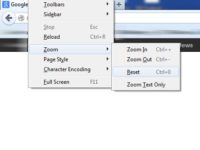
    You can either select Ctrl + 0 while the browser window is open or follow the instructions below.

    Go to View > Zoom > Reset

    resetview

    For Internet Explorer

    You can either select Ctrl + 0 while the browser window is open or follow the instructions below.

    Go to View > Zoom > 100%

    resetviewIE

  • Outlook 2010: How to change your default Contacts Address Book

    Outlook 2010: How to change your default Contacts Address Book

    Periodically people have to setup their email accounts again, either because they get a new computer or have to reinstall software. Sometimes it is just an update installed on an exchange server. Either way sometimes some settings may need to be reset.

    One of the most common questions we get is, “Where did my address book go? “. Usually people can see their contacts, but with an exchange server sometimes the default address book when you click “To” shows no contacts. By default the Exchange Global Address Book is the first source of contacts.

    In order to resolve this you just need to change the default address book in Outlook 2010.

      1. In Outlook 2010, Select Contacts in the navigation pane

    step1-defaultaddressbook

    2. Select Address Book from the ribbon menu

    step2-defaultaddressbook

    3. The Address Book window opens
    4. Select the Tools Menu
    5. Select Options

    step3-defaultaddressbook

    6. Choose Start with contact folders

    step4-defaultaddressbook

    7. Click OK

    From now on when you click the “To” button your default address list will be the outlook contacts folder.

  • How to prevent spam form submissions

    reCAPTCHA is a free CAPTCHA service that protects your site against spam, malicious registrations and other forms of attacks where computers try to disguise themselves as a human; a CAPTCHA is a Completely Automated Public Turing test to tell Computers and Human Apart. reCAPTCHA comes  can be added to your blog, forum, registration form, etc.

    In addition to protecting your site, reCAPTCHA also helps us digitize old books and newspapers. Learn More at http://www.google.com/recaptcha/learnmore

    Fight Spam and Save Shakespeare

  • Can you have Multiple SSL’s on a single IP?

    The answer is yes and no. Yes for most up to date browsers but no to some old ones. Unfortunelty since this is a newer technology the error messages for this issue on older browsers is less than informative. It is down right scary. It says;

    There is a problem with this website’s security certificate.

    The security certificate presented by this website was issued for a
    different website’s address.

    Security certificate problems may indicate an attempt to fool you or
    intercept any data you send to the server.
    We recommend that you close this webpage and do not continue to this
    website.


    Click here to close this webpage.
    Continue to this website (not recommended).
    More information

    If you arrived at this page by clicking a link, check the website address
    in the address bar to be sure that it is the address you were expecting.
    When going to a website with an address such as https://example.com, try
    adding the ‘www’ to the address, https://www.example.com.
    If you choose to ignore this error and continue, do not enter private
    information into the website.

    (more…)

  • What happens if I don’t upgrade WordPress?

    What happens if I don’t upgrade WordPress?

    Some people think opting to NOT upgrade WordPress instead of paying to make sure that their theme and plugins don’t break during an upgrade can save them money. I am here to tell you this is just not the case.

    Some plugins do not maintain their settings on update, and there may be conflicts with a new WordPress version, but my experience is that this is the exception, rather than the rule.

    If you don’t upgrade WordPress your site runs an increased risk of being hacked. This is unfortunately, one of the downsides of open source software – it’s also available to hackers who look for potential security holes.

    I’ve seen the aftermath of sites hacked and the cost of lost business is far more expensive than upgrading and possibly having to pay a developer to tweak your theme or find a new plugin.

    When you update plugins make sure to have a backup, then have the following backend pages open in different browser tabs: Widgets, the settings page(s) of the plugin(s) to be updated, and the site’s front page. This way you can see if the plugin’s settings were maintained after updating, or if there are any other issues.

  • How do I know what version of Java I Have?

    The most important thing to do before panic is check what version of Java you have. Note that the most recent version of Java is Version 7 Update 11. “Oracle Java 7 update 10 and earlier are affected,” the notice says. It adds that the only known solution is to “disable Java in web browsers.” -NPR

    1. On Windows 7 Go to Control Panel > Click on Programs
    2. controlpanel
    3. Click on Java
    4. java
    5. On the dialog box click About.
    6. javaconsole
    7. See what version you are running
    8. version


    How to Disable: https://blog.blackrocknetworks.com/java-security-risk-how-to-disable-java/

    http://www.npr.org/blogs/thetwo-way/2013/01/11/169156325/computer-users-should-disable-java-7-due-to-security-flaw-experts-say